
 Michal Krejčí
If you want to track and analyze visitor or user behavior on your website or in your app in a more advanced way and automate deliveries with even more precise targeting, you can use custom events in Boldem.
Custom events let you store information about any objects and actions that are on your website or occur in your app.
Data stored in custom events can then be used in automations, in transactional templates, for segmentation, and via the Boldem API.
Prerequisites
Custom events are tailored solutions that we approve individually. Before you start using custom events for your marketing automation, contact your sales representative, who will go over the available options with you based on your requirements.
To use custom events in your account, you must meet at least the following requirements:
- Activate the CDP Boldem plan in your Boldem account.
- Schedule a meeting with a Boldem sales representative to discuss your individual options for configuring and using custom events.
- Run a website, online store, or app with higher traffic.
- Have a developer available to implement custom events in your website or app code in collaboration with Boldem’s development team.
- Integrate your website with your Boldem account.
- Fully verify the sending domain.
Anatomy of a custom event
You create each custom event as a schema containing properties of various data types (text, number, boolean (yes/no)). You can create an unlimited number of custom events and properties to match your tracking needs.
Example of a custom event as it appears in the Boldem interface:
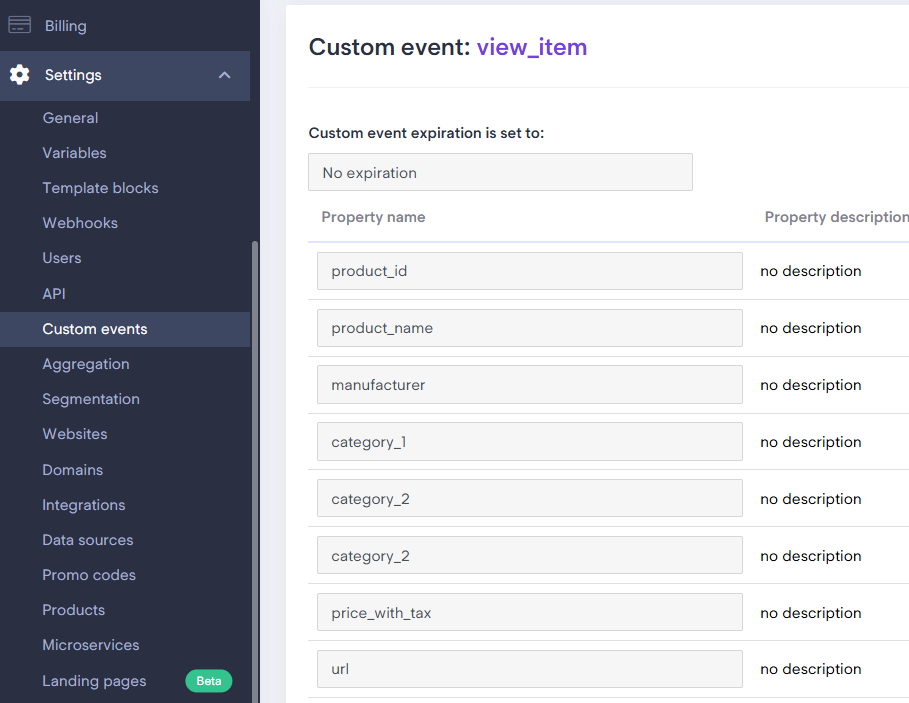
Example of a custom event in JSON format:
{
	"email": "info@example.com",
	"name": "view_item",
	"properties": {
		"product_id": "string",
		"product_name": "string",
		"manufacturer": "string",
		"category_1": "string",
		"category_2": "string",
		"category_3": "string",
		"price_with_tax": "number",
		"url": "string",
	}
}
Aggregating custom events
Depending on what you want to track on your website or in your app, you can group individual custom event properties by creating an aggregate in the Settings/Aggregates section of the Boldem app.
You can aggregate using these functions:
- minimum value,
- maximum value,
- Sum of values,
- number of values,
- first value,
- Latest value,
- most common value,
- existence of a value,
- number of unique values.
Create a custom event
In Boldem, you can have any number of custom events. You can add a new custom event in several ways:
- Manually in the Boldem interface under Settings/Custom events.
- Automatically via the Boldem API by dispatching a properly formatted POST request to the endpoint /v1/custom-events.
- Automatically during an automation based on the configured parameters (action Add custom event).
- Automatically by calling JavaScript code on the website or in the application.
Using custom events
Data collected from your website or app and stored in custom events can be used in several ways:
- In automations using the Custom Event trigger.
- In segments using the Custom event occurred source.
- In templates using the loadCustomWebEvent function.
- Using the /v1/custom-events endpoints in the Boldem API.
- Directly in your application’s code by calling JavaScript functions.
Practical examples of using custom events
Below are examples of how Boldem’s custom events can be used to personalize automations.
Mid-sized online store: Interest in products with a specific attribute
- A visitor views a certain number of products that share a common attribute — e.g., more than 5 studio speakers with Bluetooth from different tags in the last 3 days.
- Set up a transactional template with a dynamically generated offer.
- Create an automation where you set the condition that the visitor hasn’t purchased any product with this parameter.
- If so, Boldem will automatically send the visitor an email with a special offer for products matching that specific parameter, plus an incentive to buy — for example, a 5% discount on Bluetooth studio speakers if the visitor buys within 24 hours.
- This type of automation requires creating a custom event to collect product views, where properties will distinguish products (studio speakers) and their attributes (Bluetooth).
Larger online store: interest in high-value items with a specific parameter
- A visitor repeatedly views a specific product with a particular attribute within a set time period — e.g., looks at a carbon mountain e‑bike with a mid‑drive motor more than 3 times in the last 48 hours.
- Set up a webhook to dispatch messages to merchants in your company.
- Create an automation in which:
- you set a condition with a specific minimum price for viewed items, because you want to consider only higher-value products with a higher margin,
- set a condition that the visitor did not purchase the product.
- If so, the automation will trigger a webhook that sends a message to the salesperson in your company who is responsible for the product.
- The merchant contacts the visitor in a more personal way, by phone, or creates a special offer tailored directly to their estimated needs.
Travel Agency: Interest in Destination
- A visitor views a certain number of vacation offers in a specific destination within a given time period — for example, opens various accommodation listings in Tenerife, Spain 5 times in the last 48 hours.
- Create a transactional template with a dynamically changing offer, motivational text, and an incentive.
- Set up a webhook to dispatch messages to merchants in your company.
- Create an automation in which:
- you set the waiting period to 3 days,
- you set the condition that the visitor did not book a vacation.
- If so, the visitor automatically receives an email with a special trip offer generated for that destination and a purchase incentive (e.g., tips on excursions, reasons to visit that destination, discounts on local services, cashback, etc.).
- Further develop and configure the automation:
- waiting period of 3 days,
- the condition that the visitor did not submit any vacation request.
- If positive, a webhook will be triggered to notify the merchant about a potential customer.
- The merchant contacts the visitor in person, by phone, or with another tailored offer.
Accommodation: Regular Guest
- An existing customer meets the minimum number of visits requirement – e.g., has already stayed more than 3 times.
- Create a transactional template and an automation.
- Automatically assign the “Regular Visitor” tag to the customer as part of an automation.
- 14 days after the end of the 3rd stay, an automated email is sent to the customer thanking them and offering added value to encourage another visit.
Taxi and Passenger Transport: In-App Loyalty Program
- The customer has at least 1 ride on record in their account.
- Create an automation where:
- Set a minimum total spend requirement for all rides during a specified period.
- Using automation, assign the customer a VIP10/VIP15/VIP20 tag based on the amount spent.
- Send the customer an automated SMS informing them which VIP group they are in and their discount.
- Based on the set discount, the customer’s prices are also recalculated directly in the app if they are logged in.
- This process requires modifying code on the application’s operator side.
Deliveries and Food Orders: Favorite Cuisine
- The customer is presented with a form to enter their preferred cuisine.
- Based on the selected answers, a tag is assigned to the customer.
- Create an automation to send customers informational messages and promotional offers tailored to their preferences.
Language courses: Interest in language instruction
- The visitor viewed different types of courses for a single language over a period—for example, Estonian courses were viewed 3× in the last 48 hours.
- Create a transactional template with dynamically generated content for course offerings.
- Set up a webhook to dispatch messages to merchants in your company.
- Create an automation where:
- Set the condition that the visitor hasn’t ordered any of the Estonian courses.
- If the answer is yes, the visitor will receive an email with a special offer for Estonian courses.
- Set the waiting period to 3 days.
- Set a condition that will check again that the visitor hasn’t ordered any of the Estonian courses.
- If positive, a webhook will start that sends a message to the merchant responsible for Estonian courses.
- The salesperson personally contacts the visitor with a tailored offer.
Mobile app: Interest in premium (paid) features.
- A visitor accesses a certain number of paid-feature sections within a given period — for example, opens the comparison pages for a product’s premium features 5 times in the last 48 hours.
- Create an automation where:
- set the condition that the visitor is not subscribed to premium features.
- If so, send the visitor either an email or display a PUSH notification in the app with a time-limited offer of premium services at a lower price, or another type of purchase incentive.

