
 Michal Krejčí
To ensure Boldem correctly loads data from your website (online store or other system), add your website under Settings/websites and insert a special code into your site’s pages. The code can also be added using Google Tag Manager.
If you operate your website on the Shoptet, Upgates, or Rocketoo platform, use the procedures below for integration:
- Integration of Boldem with an Upgates online store
- Boldem integration with a Shoptet e-shop
- Integration of Boldem with an online store on the Rocketoo platform
The website activity tracking feature is part of the E-mailing plan. If you’re using one of the older plans, contact our sales representative.
How to integrate a website with your Boldem account
To track your recipients’ activity on your website in your Boldem account, display subscription forms on your website, or transfer additional data into your Boldem account, you need to set up an integration with Boldem.
- Log in to the Boldem app.
- In the left menu, select Settings and click Websites.
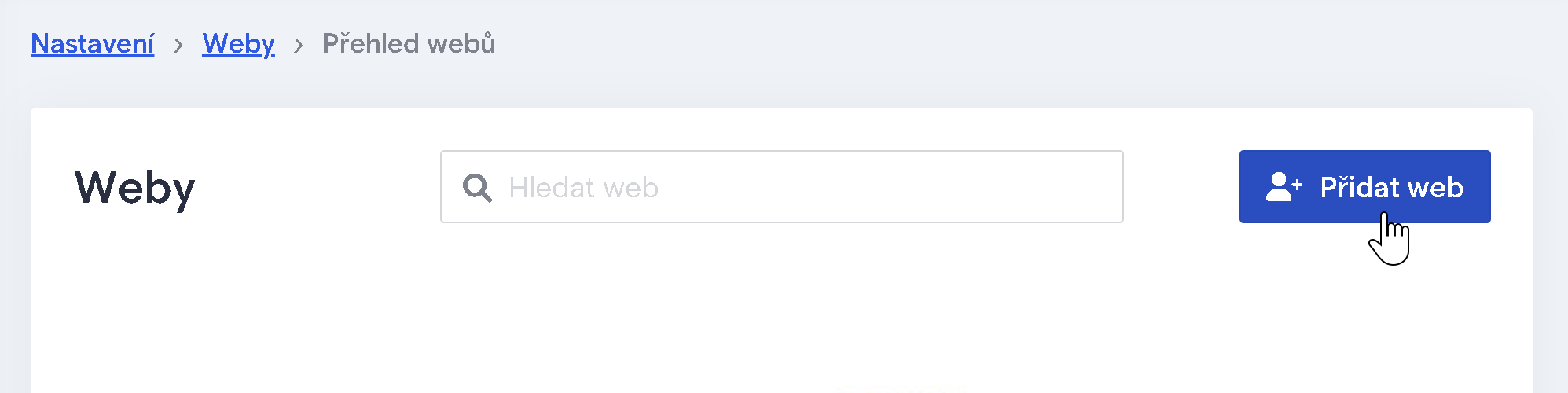
- On the right side of the dialog, click Add website.
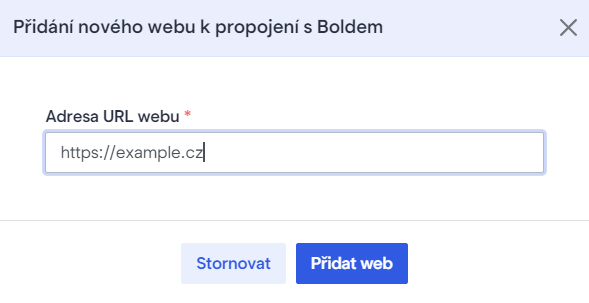
- Enter your website’s domain URL and click the Create website button.
Important: Enter only the root domain of your website, regardless of where you ultimately place the tracking code. So, if you place the code, for example, at https://www.example.com/eshop/, enter only the domain https://www.example.com in the Website URL field without any added path.
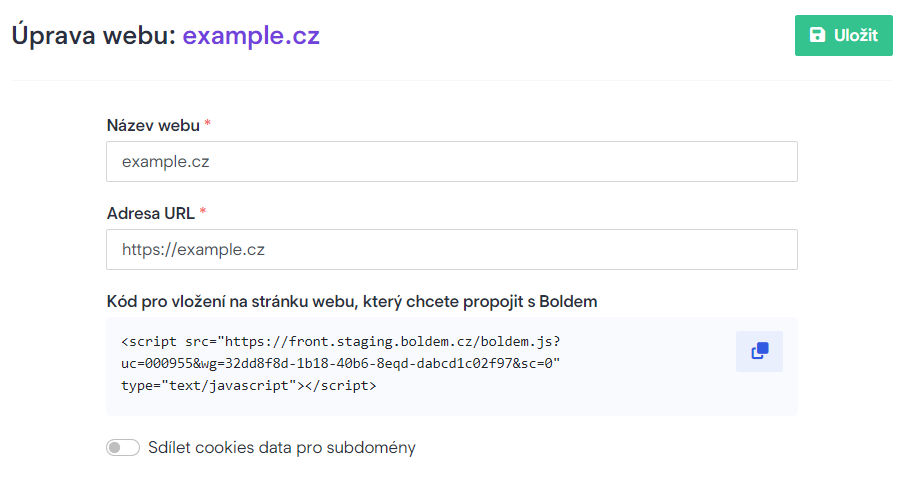
- The code will appear; copy it to the clipboard either by clicking the copy icon or by selecting it manually.
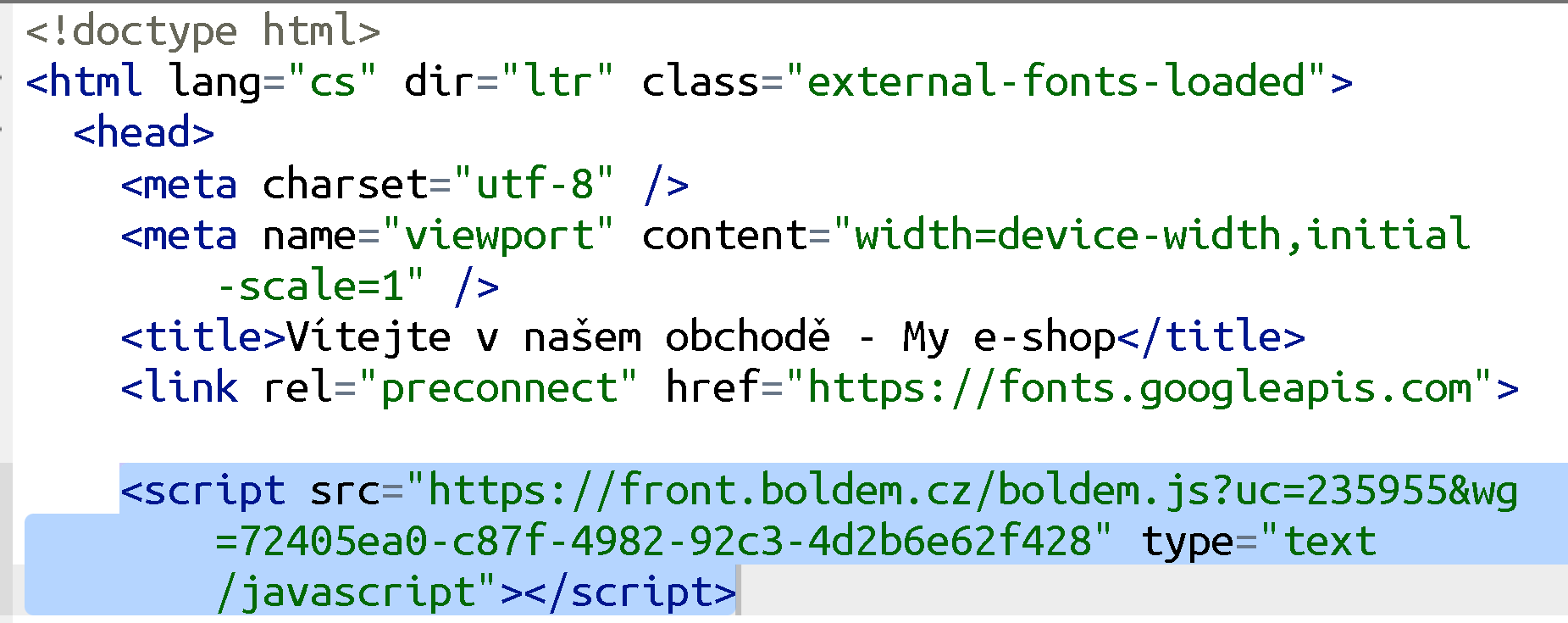
- Insert the code into the pages of your website where you want to track visitor activity or display forms. Ideally, place the code in the page header.
How do I start transferring data from a website to Boldem?
To track recipients’ activity on your website and work with additional data, you need to insert JavaScript code into your pages. Below is an overview of options for implementing calls after the tracking code has been successfully initialized:
Initialization and method calls immediately after initialization completes successfully
Variant A – configuration object
<script type="text/javascript">
window["BoldemConfig"] = {
     onLoad: function() {
          <!-- your logic to run after the Boldem tracking code initializes successfully -->
     }
}
</script>
<script src="https://front.boldem.cz/boldem.js?uc=XXXXXX&wg=XXXXXX-XXXXX-XXXX-XXXX" type="text/javascript"></script>
You can assign an object with the following properties to window[“BoldemConfig”]:
interface BoldemConfig {
    debug?: boolean, // enables detailed logging to the developer console
    autoStart: boolean, // determines whether tracking should start immediately after the code loads. Default: true
    onLoad?: () => void, // function that runs immediately after successful initialization of the tracking code
    skipTrackPageView?: boolean // disables automatic tracking of visited pages
}
Variant B – listening for events of type “BoldemReady”
<script type="text/javascript">
document.addEventListener("BoldemReady", ()=> {
     <!-- your logic that runs after the Boldem tracking code is successfully initialized -->
});
</script>
<script src="https://front.boldem.cz/boldem.js?uc=XXXXXX&wg=XXXXXX-XXXXX-XXXX-XXXX" type="text/javascript"></script>
Variant C – no action after initialization
If you don’t want to perform any actions immediately after initializing the tracking code, you don’t need to configure it. Just insert it into the page exactly as shown in your Boldem account under Settings -> Websites, and call its methods (described below) as needed.
<script src="https://front.boldem.cz/boldem.js?uc=XXXXXX&wg=XXXXXX-XXXXX-XXXX-XXXX" type="text/javascript"></script>I’m unable to transfer data to Boldem — what can I do?
Below is a list of steps to follow if you’re unable to send data to Boldem using the tracking code:
- Check that the tracking code is correctly inserted into your website’s page content.
- Check that the “uc” and “wg” parameters in the source of the tag match the values listed in your Boldem account, Settings -> Websites.
- Using your browser’s developer tools (how to open the developer tools), check whether there are any errors in the “Console” section.
- Add the query string parameter “debug” to the URL you’re currently on. Example: if you have https://boldem.cz open -> change the address in the address bar to https://boldem.cz?debug=1. Then repeat the previous step and check the developer tools console for any errors.
If you encounter an error while following the steps above that you cannot delete, contact us.
How can I combine the tracking code with the cookie banner on my website?
If you want to begin tracking only after the visitor has consented to cookies, set the autoStart property to false in the configuration object of type BoldemConfig. The object definition is shown above.
After the visitor consents to cookies, use the following method to activate the tracking code:
| Event | Description | Parameters |
|---|---|---|
| Boldem.start() | Activates the tracking code – with the script’s default settings (without a configuration object) you don’t need to call this function |
List of available methods
Below you will find a list of methods, including their corresponding parameters and type definitions. Calls can be made from anywhere on the page. These calls will be automatically forwarded to Boldem only after the tracking code has been successfully initialized.
Visitor identification
| Event | Description | Parameters |
|---|---|---|
| Boldem.identifyVisitor(email) | Pairs an email address with the current visitor. This method only needs to be called once when identifying the visitor. | email – string – required (email address of the current visitor) |
Example call:
Boldem.identifyVisitor('jan.novak@boldem.cz');Updating shopping cart contents
| Event | Description | Parameters |
|---|---|---|
| Boldem.updateCartContent(items, customFields?) | Sends information about the contents of the shopping cart. | – items – BoldemCartItem[] – required – array of items in the shopping cart (if the shopping cart is empty, provide an empty array) – customFields – CustomFields – custom information stored with the shopping cart, definition below |
Definition of the BoldemCartItem object:
interface BoldemCartItem {
    amount: number; // [required] Quantity of the item listed in the shopping cart
    name?: string;// Product name in the shopping cart
    url?: string; // Product URL in the shopping cart
    code: string; // [required] Unique identifier of the product in the shopping cart
    productImageUrl?: string; // Product image URL in the shopping cart
    currency?: string; // Currency of the product price in the shopping cart per ISO 4217
    price?: number | null; // Price without VAT per unit of the product in the shopping cart
    priceVat?: number | null; // Price including VAT per unit of the product in the shopping cart
    category?: string; // Product category in the shopping cart
    manufacturer?: string; // Product manufacturer in the shopping cart
    variant?: string; // Product variant in the shopping cart
    customFields?: CustomFields; // object definition provided below
}
CustomFields object definition:
interface CustomFields {
    customField1?: string;
    customField2?: string;
    customField3?: string;
    customField4?: string;
    customField5?: string;
}
Example call:
    Boldem.updateCartContent([
    {
        "amount": 1,
        "code": "1",
        "name": "Accu-Chek Performa Test Strips, 50 pcs",
        "price": 226.00,
        "priceVat": 260.00,
        "currency": "CZK",
        "url": "https://www.zdravicobavi.cz/testovaci-prouzky-accu-chek-performa-p1",
        "productImageUrl": "https://www.zdravicobavi.cz/product-images/snimek1_2.jpg",
        "customFields": {"customField1": "cart item custom field"},
    },
    {
        "amount": 2,
        "code": "1",
        "name": "QFINE Insulin Needles 6 mm, 100 pcs",
        "price": 170.00,
        "priceVat": 200.00,
        "currency": "CZK",
        "url": "https://www.zdravicobavi.cz/testovaci-prouzky-accu-chek-performa-p1",
        "productImageUrl": "https://www.zdravicobavi.cz/product-images/snimek1_2.jpg"
    }],
    {"customField1": "cart custom field"}
);
Complete order
| Event | Description | Parameters |
|---|---|---|
| Boldem.orderFinished(orderId, email?, params?) | Sends an order completion notification. | – orderId – string – required (unique order identifier in the online store) – email – string – optional (customer’s email address) – params – object – optional (detailed order information) |
Example call:
Boldem.orderFinished('7917');
Boldem.orderFinished('7917', 'jan.novak@boldem.cz');
Boldem.orderFinished('7917', 'jan.novak@boldem.cz', {
    'deliveryInfo': 'In-store pickup',
    'paymentInfo': 'Cash',
    'state': 'New',
    'phone': '+420775123456'
});
Custom website event
| Event | Description | Parameters |
|---|---|---|
| Boldem.trackEvent(name, data) | Sends information about a custom event. | – name – string – required (name of custom event) – data – object – optional (custom data) |
Example call:
Boldem.trackEvent('FormSent',
    {
        "firstName": "John",
        "lastName": "Novak"
    }
);
