
 Michal Krejčí
In this guide we’ll walk you through setting up domain records DKIM, SPF, DMARC and CNAME (domain router) in the Plesk control panel. These records must be set if you want to safely send bulk emails from the Boldem app and prevent messages from ending up in spam.
- Log in to your Boldem account.
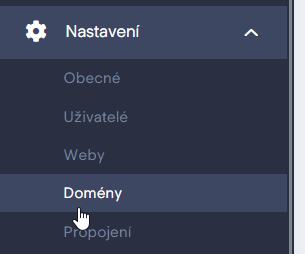
- In the left menu, select Settings and click Domains.
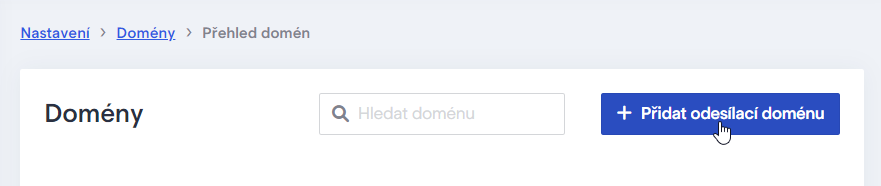
- If you didn’t enter a sending domain name when creating your account, click the + Add sending domain button. If you already entered the domain when creating your account and see it in the list, proceed to step 4 below.
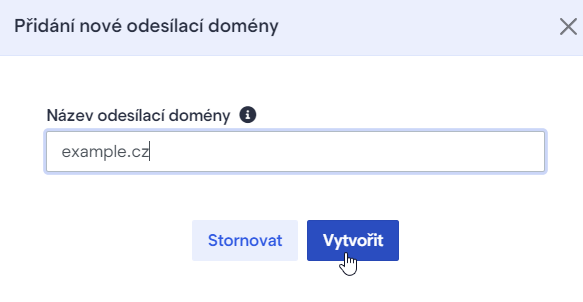
- Enter the sending domain and confirm with the Create button. Enter the domain without www, e.g. example.cz.
- Click the Details button for the domain in the list.

- Click the Domain Settings tab.
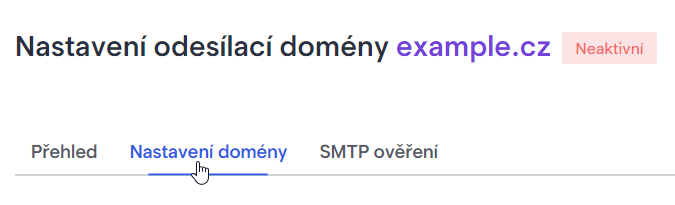
The page will display the DKIM signature, SPF record, and CNAME record. Keep this window open; you’ll need it in a moment.
- In a new window, sign in to your domain management account in the Plesk control panel, which typically runs on port 8443, for example at https://example.com:8443/. Get the exact URL from your web hosting provider or your domain registrar.
Because there are many versions of the Plesk control panel, the names of the items in the steps below may not exactly match what you see. If in doubt, consult the documentation for your version of Plesk.
- In the left-hand menu click on Websites & Domains.
- From the list of domains, select the domain you added to Boldem and click Hosting & DNSThe Domain Name System (DNS) is a hierarchical and distributed naming system for computers, services, and other resource....
- Click on DNS Settings.
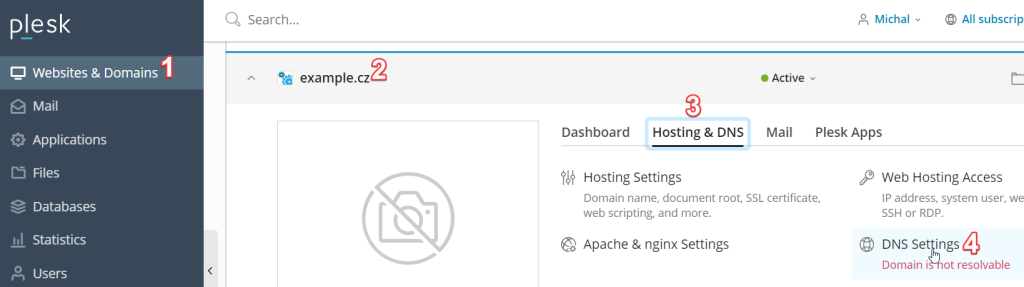
An overview of the domain records will appear. Continue to set up individual records using the steps below.
DKIM Record Settings
- Click Add record.
- Several fields will appear for you to fill out.
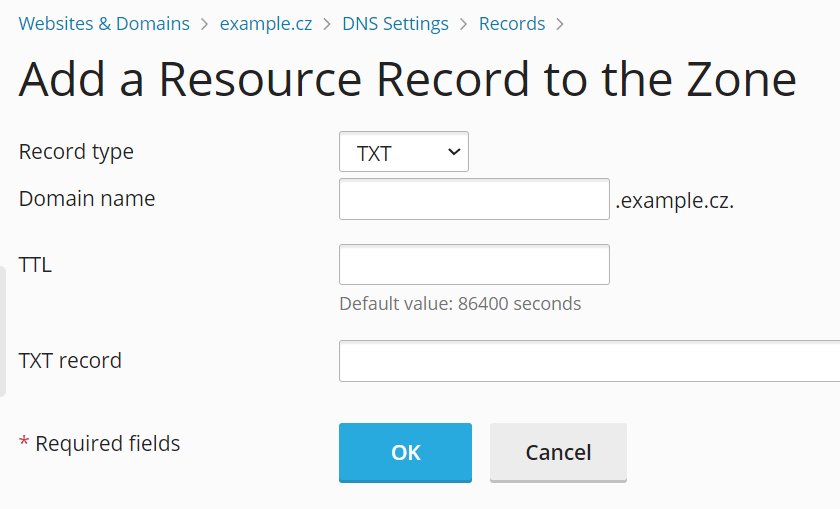
- In the Record type field, select TXT.
- In the Domain name field, enter the value you copied from your Boldem account in the Name section by clicking the copy icon.
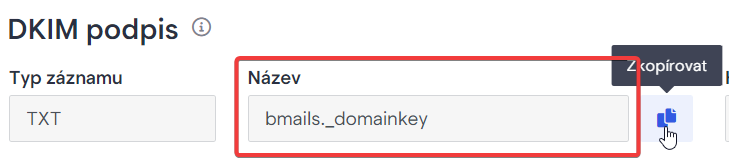
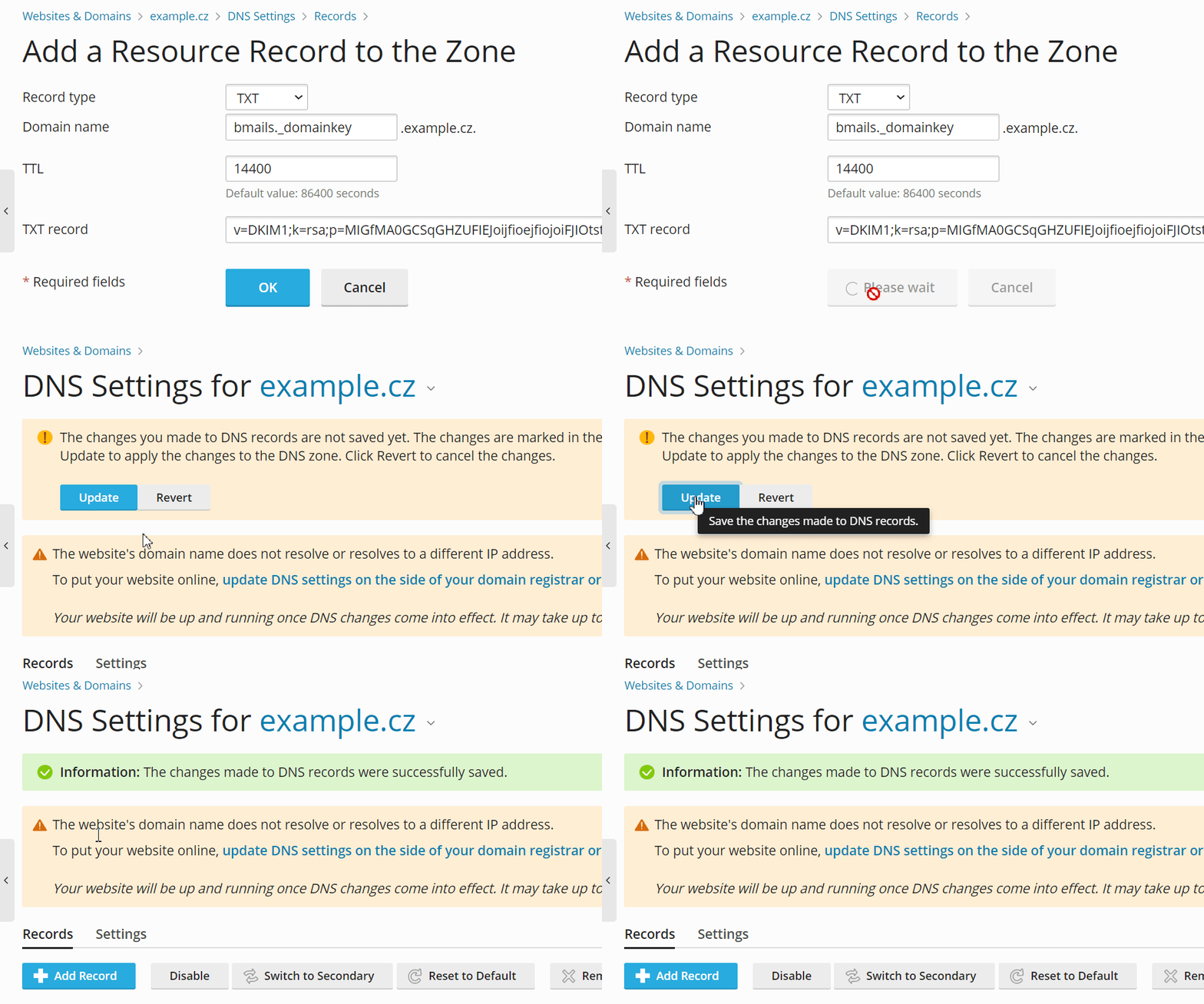
- Leave the value in the TTL field empty, or enter 14400.
- In the TXT Record field, paste the code you copied from your Boldem account’s DKIM signature section in the Value custom field by clicking the copy icon.

- Save the record by clicking the OK button.
- To push the record to the DNS server as well, click Update.
SPF Record Settings
Important notices:
- Each domain or subdomain can have only one SPF record.
- If your domain already has an SPF record, do not create a new one; add the value from the Boldem app to the existing SPF record.
- When checking TXT records containing SPF data, be careful you are editing the correct domain! SPF data can differ for the base domain (e.g., example.com) and for a subdomain (e.g., subdomena.example.com). In your Boldem account you will most likely use the base domain (example.com).
- An SPF record can contain data for up to 10 domains.
Edit existing SPF record
If you find a TXT record in the list of domain records that contains SPF information for your domain (e.g., for example.cz), you should edit that record rather than create a new one. Example of an existing record:
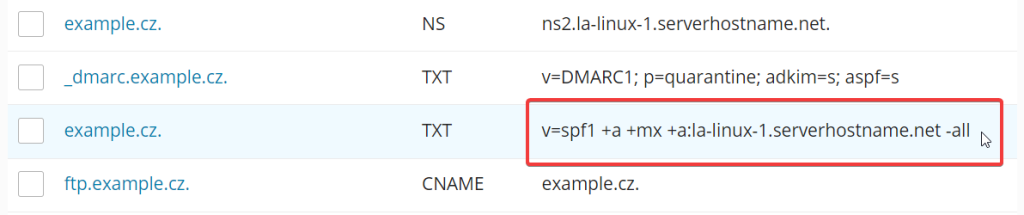
- On the row containing the record, click the domain name link (in our case example.cz.). The record edit dialog will open.
- In the TXT Record field, insert the string include:spf.boldem.cz before the ~all tag. The resulting form of the example above would be:
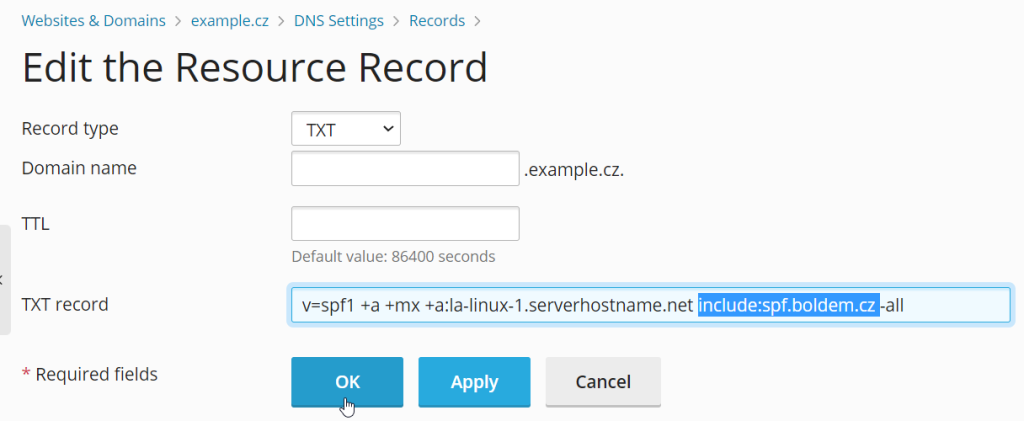
- Save the record by clicking the OK button.
- To push the record to the DNS server as well, click Update.
Add a new SPF record
If you don’t find a TXT record containing SPF information for your domain in the list of domain records, follow these steps:
- In the list of records, click Add record.
- A field to fill in will appear.
- In the drop-down menu Record type, select TXT.
- Leave the Domain name field empty.
- Leave the value in the TTL field empty, or enter 14400.
- Paste the code into the TXT record field — copy it from your Boldem account’s SPF record section by clicking the copy icon in the Value custom field.

- Save the record by clicking the OK button.
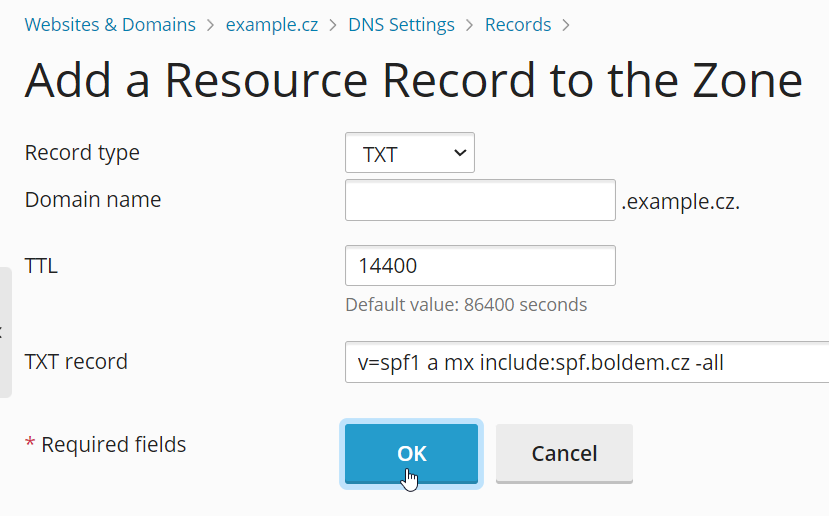
- To push the record to the DNS server as well, click Update.
DMARC record settings
- Each domain or subdomain can have only one DMARC record.
- If your domain already has a DMARC record, do not create a new one; incorporate the value from the Boldem app into the existing DMARC record.
- When checking TXT records with DMARC data, be careful you are editing the records for the correct domain! DMARC settings can differ between the root domain (e.g., example.com) and a subdomain (e.g., subdomena.example.com). In your Boldem account you will most likely use the root domain (example.com).
Edit existing DMARC record
If you find a TXT record in the list of domain records that contains DMARC data for your domain (e.g., example.com), you should modify that record instead of creating a new one. Example of an existing record:
v=DMARC1; p=none; rua=mailto:dmarc@example.com- Click the domain name link on the record’s row (in our case example.com.). A dialog for editing the record will open.
- A dialog to edit the information will appear. In the field TXT Record add the value you copy from your Boldem account under Value. However, copy only the part of the string starting with mailto. Example of a DMARC value in Boldem:

- In this case, copy only the mailto:pdgpt8b8@dmarc.boldem.cz part.
- To the end of the part of your existing record that begins with rua, add a comma and paste the copied portion of the record. The resulting form of the example above would be:
v=DMARC1; p=none; rua=mailto:dmarc@example.com,mailto:pdgpt8b8@dmarc.boldem.cz- Save the record by clicking the OK button.
- To propagate the record to the DNS server, click Update.
Add new DMARC record
If you don’t find a TXT record in the list of domain records that contains DMARC information for your domain, follow these steps:
- In the Plesk interface, click Add record in the list of records.
- A dialog will appear for you to fill out.
- In the drop-down menu Record type, select TXT.
- Do pole Domain name zadejte údaj, který si zkopírujete z účtu Boldem v části DMARC záznam ve sloupci Název kliknutím na ikonu kopírování.

- Leave the value in the TTL field empty, or enter 14400.
- Paste the code into the TXT record field, copying it from your Boldem account under DMARC record in the custom field Value by clicking the copy icon.

- Save the record by clicking the OK button.
- To propagate the record to the DNS server, click Update.
CNAME Record Settings (Domain Router)
- In the list of records, click Add record.
- A field to fill in will appear.
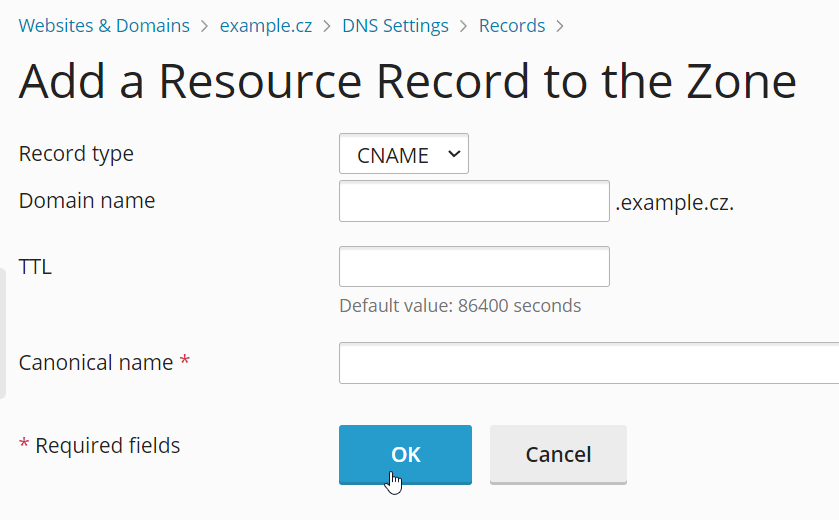
- In the drop-down menu Record type, select CNAME.
- Do pole Domain name zadejte údaj, který si zkopírujete z účtu Boldem v části CNAME ve sloupci Název kliknutím na ikonu kopírování.
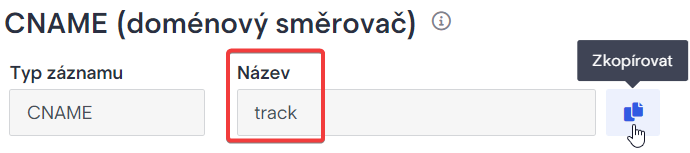
- Leave the value in the TTL field empty, or enter 14400.
- Paste into the Canonical name field the code you copy from your Boldem account’s SPF record section under the Value custom field by clicking the copy icon.

- Save the record by clicking the OK button.
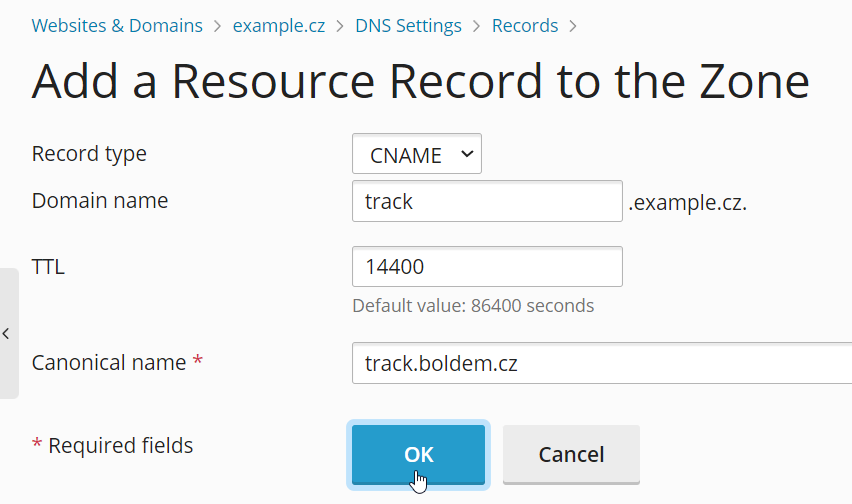
- To push the record to the DNS server as well, click Update.
Domain record validation
After setting up the records, it may take some time for the information to propagate to DNS servers. For most providers, this should happen within an hour, and usually no later than 24 hours.
After setting up all records, open the Boldem app and go to Settings/Domains, select your domain, and on the Domain settings tab click the Check settings button.

The ideal outcome of the check is green‑marked information for each record:
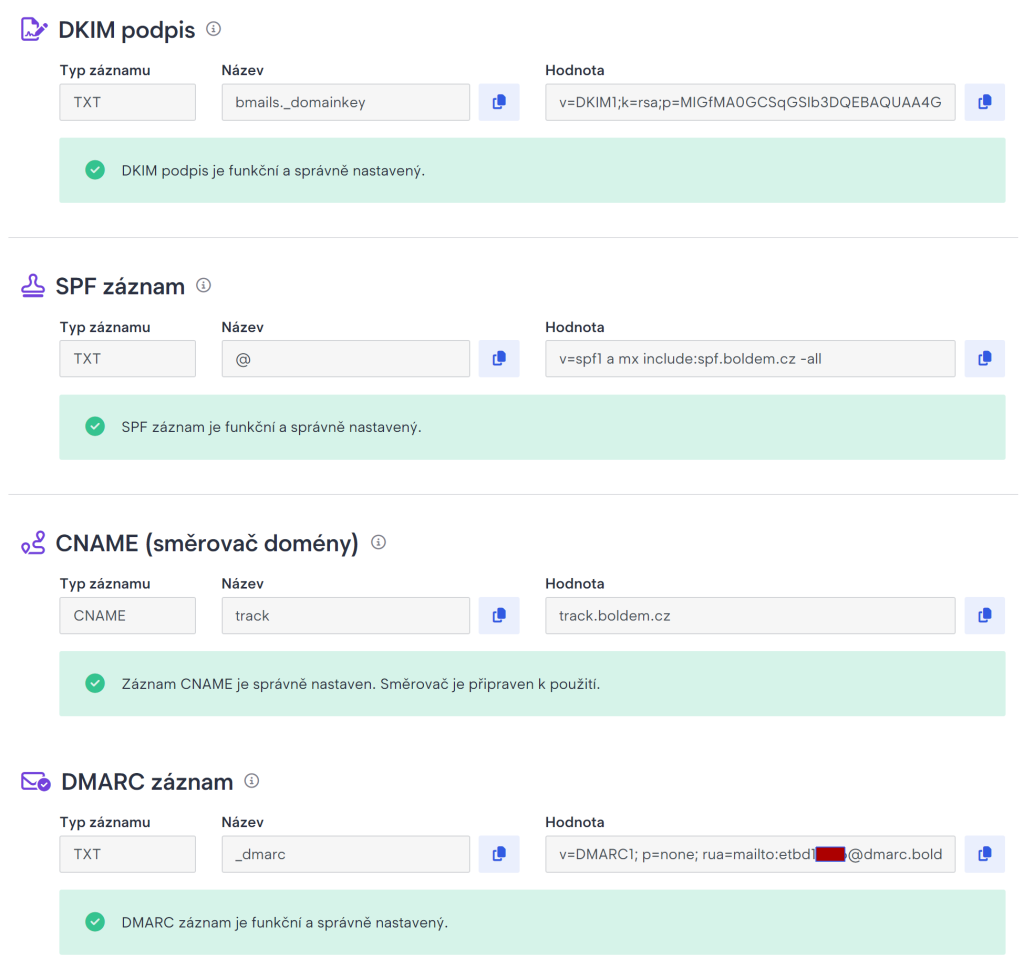
If the domain changes haven’t taken effect after 24 hours, contact your domain provider’s support to verify that the records were entered correctly, then repeat the domain verification process in the Boldem app.
Missing certificate for HTTPS
You may encounter the following error when validating the CNAME record:
The CNAME record is set up correctly. To enable full functionality, you still need to configure a certificate for HTTPS.

This error occurs when the domain contains a CAA (Certification Authority Authorization) record. A CAA record lets domain owners or administrators specify which certificate authorities are allowed to issue SSL certificates for the domain.
Boldem uses a Let’s Encrypt certificate, so you need to add a new record with this identifier to your domain. Leave existing CAA records unchanged.
Example of adding a record for the Wedos (Vedos) provider:
- After logging in to the domain administration, click the domain you want to edit.
- Select Edit DNS records. An overview of the domain’s records will appear.
- Check whether a CAA record containing “letsencrypt.org” exists, and if not, add one by clicking New record.
- Leave the Name field empty and the TTL at its default. In the Type field, select CAA.
- In the Data field, enter:
0 issue “letsencrypt.org”

- Click Save record.
This will result in the following CAA record:

Confirm your entry by clicking the Apply changes button.
Wait 60 minutes and try verifying the domain records in the Boldem app again. If the error persists after another 24 hours, contact customer support.

