Michal Krejčí
If you wish to offer customers a discount, you have the option to use promo codes that can be automatically assigned to them via our automation features. Promo codes can be imported into Boldem in bulk and distributed through campaigns or automations.
You can find promo codes in the Boldem app under Settings/Promo codes.
Importing promo codes
You can enter the codes manually, or import them from an Excel file (xlsx), a CSV file containing comma-separated values, or a text file.
- Go to Settings/Promo codes.
- Click All groups and select Add group.
- Enter a group name, choose its color, and confirm by clicking the Add button.
- Click on New promo code.
- In the drop-down menu Expiry date settings, select the type of validity for the promo codes. It should match the validity set in the online store from which you generate the promo codes.
- No time limit – all imported promo codes can be used without expiration.
- Common – all imported promo codes share a single expiration date and time. Once selected, a field will appear to enter the common expiration date.
- Individual – each imported promo code has a defined expiration date and time. In this case you must have two custom fields in the imported file: one for promo codes and the other for the expiration date (or date and time).
- If you have a file of promo codes to import, click Select file and confirm your choice by clicking Create.
The file with promo codes must be in Excel, CSV, or TXT format, with promo codes stored one per row. Optionally, the imported file can contain the promo code expiry date in the second column in the date format you use in your account (see Settings/General/Basic settings – Date & time format), or in the default English format mm/dd/yyyy. The expiry date will be applied only if you selected Individual for Expiry date.
- You can also import a small number of promo codes manually by entering them into the Promo codes field. In that case, enter one promo code per row. To add an expiry date to manually entered promo codes, select Expiry date settings → Individual in the drop-down menu and append a semicolon or vertical bar to the promo code name, followed by the date and time in the format set in your account (see note above), e.g.:
CouponCode11;29.3.2028 11:38

CouponCode12|29.3.2028 12:00- Confirm the dialog by clicking Create.
Wait for the promo codes to finish importing. With larger imports, the process may take some time.
Using promo codes in templates
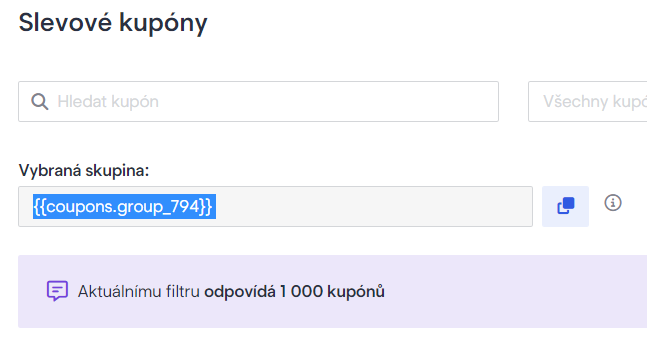
You can organize promo codes into groups that can be assigned different colors and names. Each group has a unique identifier, e.g. {{coupons.group_794}}. Copy it and paste it into the templates you plan to use in campaigns or automations.
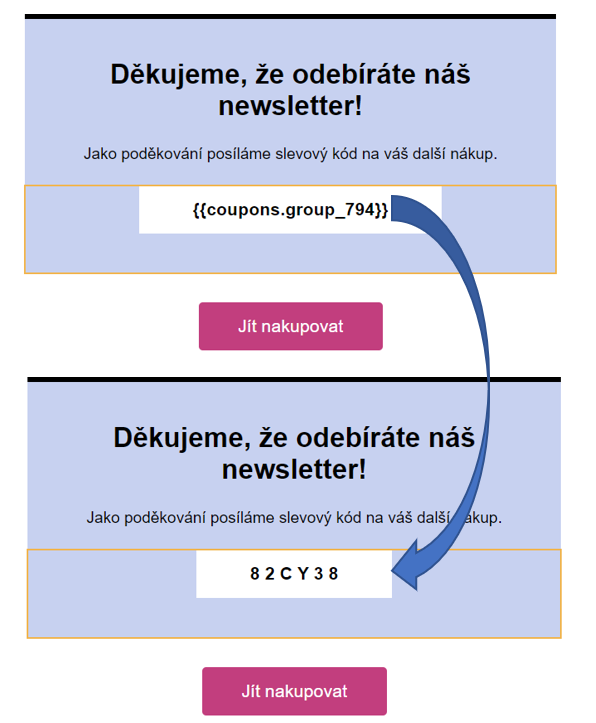
In the template, paste the copied promo codes group identifier where you want unique promo codes to appear to recipients after the campaign is dispatched or after starting an automation and sending transactional emails.