
 Jaroslav Bouška
In addition to replacing basic recipient variables, Boldem supports conditional rendering of blocks, iterating over structures (e.g., items in the shopping cart), and formatting outputs. Below is a basic overview of the variables and how to use them.
Basic variables
| Variable | Description |
|---|---|
| {{ contact.title }} | Recipient salutation. In practice you’ll more often use the variable vokativ – see Declension of first names. |
| {{ contact.company }} | Recipient company |
| {{ contact.surname }} | Recipient’s last name |
| {{ contact.name }} | Recipient’s first name |
| {{ contact.email }} | Recipient email |
| {{ contact.mesto }} | Custom field in the system named mesto (city). |
| {{ unsubscribeUrl }} | Unsubscribe URL. If unsubscribe is enabled for the campaign and this variable is not found in the email body, the default unsubscribe text is automatically inserted. |
| {{ webMailUrl }} | URL to view the email on the website. |
| {{ webMailWithHeaderUrl }} | URL to view the email on the website. The email will be displayed on the website including sender and recipient details. |
Declension of first names
Boldem can automatically inflect first names into the 5th case. To generate salutations, use the vokativ variable. Use this variable by inserting the following string into the template:
{{ vokativ contact.name }}
This string will be replaced after the message is dispatched with the recipient’s first name in the correct vocative form. For example, if the recipient’s first name is Jana, the template will show Jano. To address the recipient informally as Ahoj Jano, use the following string in the template:
Hi {{ vokativ contact.name }},
If you’d like to thank someone for registering, use the following string:
Thank you for registering, {{ vokativ contact.name }}!
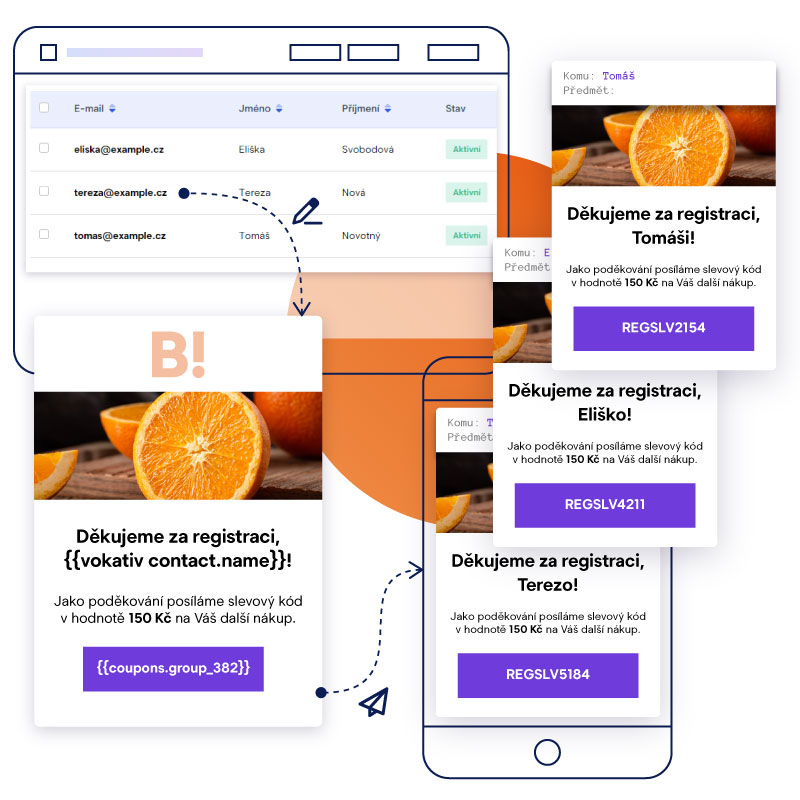
In the example above, we use data from the base variable contact.name, i.e., the first name specified for each recipient. You can also obtain input data from custom fields, or, for example, from a JSON file sent when dispatching a transactional email.
Last name declension
Boldem can automatically inflect not only first names but also surnames into the 5th case. To generate salutations, use the vokativ function. You use this function by inserting the following string into the template:
{{ vokativ contact.surname }}
This string will be replaced after message dispatch with the recipient’s surname in the correct vocative form. For example, if the recipient’s surname is Novák, the template will display Nováku. The declined form of the surname is usually not used on its own but in combination with gender distinction. See the next chapter for details.
Declension with gendered salutations
In many cases of personalized salutations, you need to correctly inflect not only the recipient’s first or last name but also adjust the salutation itself based on the recipient’s gender. Since Boldem lets you record a recipient’s gender, using the resulting string is a breeze.
In certain cases, recipients’ gender is automatically assigned based on the provided first or last name (e.g., when creating manually or optionally during bulk import). For nonstandard names, gender won’t be set automatically, so it’s advisable to verify ambiguous names and enter them manually.
If gender is set for recipients, you can use the following string in the template instead of a specific salutation:
Thank you for registering{{ if contact.sex != null }}{{ if contact.sex == 1 }}, Mr. {{ end }}{{ if contact.sex == 0 }}, Ms. {{ end }}{{ vokativ contact.surname }}!{{ else }}!{{ end }}This string is actually scripting code that checks whether a given recipient has their gender set correctly and uses the appropriate salutation:
- If gender is set to Male and the recipient’s last name is Novák, the salutation used is: Thank you for registering, Mr. Novák!
- If gender is set to Female and the recipient’s last name is Svobodová, the salutation used is: Thank you for registering, Ms. Svobodová!
- If gender is not set, a gender-neutral salutation without a last name will be used: Thank you for registering!
You can, of course, customize the salutation text (shown in bold in the example) to suit your needs. We recommend always thoroughly testing the salutation on a small sample of test recipients with all variants (i.e., both genders and a recipient with no gender specified).

You can similarly distinguish the salutations “Dear Sir”, “Dear Madam”, or “Hello” when the recipient’s gender isn’t specified. In that case, use the following code in the template:
{{ if contact.sex != null }}{{ if contact.sex == 1 }}Dear Mr. {{ end }}{{ if contact.sex == 0 }}Dear Ms. {{ end }}{{ vokativ contact.surname }},{{ else }}Hello,{{ end }}The result is personalized salutations based on the specified gender:

In the example above, we use data obtained from the basic variables contact.surname and contact.sex, i.e. the surname and gender specified for each recipient. You can also obtain input data from custom fields, or, for example, from a JSON file sent when dispatching a transactional email.
Terms
Writing individual conditions is simple using the if keyword:
{{ if product.price == 100 }} Expression is true {{ else }} Statement is null or false! {{ end }}
We can also use a variant with if else:
{{ if product.price > 100 }}
Very expensive
{{ else if product.price < 100 && product.price > 50 }}
Expensive
{{ else }}
Cheap
{{ end }}
Cycles
Loops are used to iterate through and render individual elements from a data array.
Basic loop for iterating over an array of products.
{{ for item in products }} This is the product {{ item.title }} {{ end }}
You can sort data fields by name.
{{ for item in products | array.sort "title” }} This is the product {{ item.title }} {{ end }}
Inside the loop, we can retrieve additional traversal information
{{ for.index }} – returns the iteration index.
{{ for.first }} – returns true if this is the first iteration.
{{ for.last }} – returns true if it’s the last iteration.
{{ for.even }} – returns true if the current iteration is even.
{{ for.odd }} – returns true if the current loop iteration is odd.
Working with dates
{{ date.now }} – displays the current unformatted date
{{ date.now | date.to_string "%d.%m.%Y" }} – displays the current date in dd.mm.yyyy format
{{ date.now | date.to_string "%d.%m.%Y %H:%M" }} – displays the current date and time in dd.mm.yyyy hh:mm format
date.now can be replaced with any variable that contains a date, for example the order creation date or the cart creation date
Find the complete list of available variables on the “Working with dates” page
Output Formatting
{{ dateVariables | date.to_string "%d. %m. %Y %H:%M" }} – date and time formatting
{{ 5.4329 | math.round 2 }} – rounded to 2 decimal places.
{{ textVariables | string.upcase }} – returns the input text in uppercase.
{{ textVariables | string.downcase }} – returns the given text in lowercase.
{{ textVariables | string.capitalizewords }} – capitalizes the first letter of each word
{{ textVariables | string.base64_encode }} – returns the value of the variable encoded in base64
Data generation
{{ math.uuid }} – creates a new UUID.
{{ math.random 1 100 }} – returns a random number between 1 and 100.
{{ date.now }} – returns the current date.
{{ date.now.year }} – returns the current year.

