
 Michal Krejčí
Reactivation campaign to win back former customers — an automation you can use to try to re-engage customers who previously bought from you but haven’t responded to any of your messages for a long time.
Automation goal
The goal of reactivation automation is to automatically prompt recipients who haven’t purchased from your online store for a long time, or who haven’t opened or clicked your messages for an extended period, to take action. You can also use the automation to clean your recipient database and automatically unsubscribe recipients who repeatedly don’t respond at all. By cleaning your database, you’ll get more accurate campaign results because these “dead” recipients won’t skew your open rate and click-throughs.
Automation is designed as a series of emails aimed at offering the recipient content so attractive they click it, or at least open it and thus become an active recipient again. It could be a discount, a trial subscription, or another special offer.
You can automatically unsubscribe recipients who complete the automation without a single interaction with your messages.
Prerequisites
To create an automation, you will need:
- Activated E-mailing plan in your Boldem account.
- An online store or other type of website integrated with a Boldem account.
- A fully verified sending domain.
- The mailing list from which you want to add recipients to the automation.
- Transactional templates — the messages you want to send to recipients.
- Promo codes (optional) – if you choose to offer promo codes to customers as part of automation, you must add them first.
Find details for each step in the chapters below.
Website/online store integration with Boldem account
If you don’t operate an online store or website through which you collect recipients, and you don’t need the reactivation automation to check whether recipients purchased from your store within a recent timeframe, you can skip this step. Otherwise, it’s practical to integrate your website with Boldem.
To ensure data from your website (online store or another system) loads correctly into the Boldem app and you can effectively use all features, such as automations or subscription forms, you must first integrate your website with your Boldem account. You have the following integration options:
- A general integration that lets you display a form on your website to collect data.
- Instant integration of your online store with the Shoptet or Upgates platform, enabling seamless synchronization of your contacts database, cart data, and orders.
- Advanced integration with any website or online store on any platform that, in addition to displaying the form, can also, for example, synchronize contacts or order and cart data. However, this integration requires a developer to implement it for you.
For full functionality of the integration you need a Boldem account with the E-mailing plan, or higher. You can change your plan at any time from Billing. If you run into problems when upgrading, contact your sales representative or our customer support by email, phone, or chat.
Below are instructions on how to integrate various platforms with your Boldem account:
- Shoptet store integration with your Boldem account.
- Integration of an Upgates store with a Boldem account.
- Integration of the Rocketoo store with a Boldem account.
- Integration of any website with the Boldem app.
Mailing list
The automation requires a mailing list to load recipients from.
You can easily import recipients into your mailing list. Find instructions for importing recipients here.
Transactional template
Only so-called transactional templates can be used in automations. Any smart template can be set as a transactional template. A fully verified sending domain is required for a transactional template to work correctly. You can manage sending domains in Settings/Domains.
To create a new transactional template, follow these steps. You can update an existing smart template the same way; in that case, open the template and continue with step 4:
- Log in to the Boldem app and go to the Templates section.
- Click Create new template and select Create smart template.
- Choose whether to edit a predefined template from the gallery, use a sample template, or start from scratch with an empty template.
- Click the gear icon. The Information tab will appear.
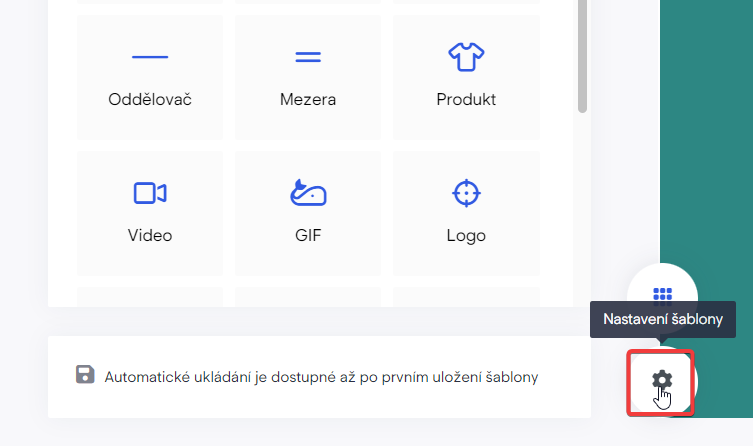
- On the Information tab, enter the template name, subject, and preheader (subject preview).
We recommend naming the template after the context or scenario you’ll use it in automations, so you can easily find it in the template list.
- Enable transactional features with the toggle switch Template for transactional emails (Automation and API). Additional fields for the transactional template will appear.
- Fill in Sender Email, Sender Name, and select Domain Router from the dropdown list.
Enter a working sender email address. This email must be on a domain you have verified in Boldem. Add or verify a domain in Settings/Domains.
- In the top-right corner, click Done and select Save and Exit.
promo codes
If you decide to incentivize your customers with a discount, it’s practical to use a separate promo code for each customer. Before using promo codes in the template, you need to enter them into the system — either manually or by importing from a file:
- Go to Settings/Promo codes.
- Click All groups and select Add group.
- Enter a group name, choose its color, and confirm by clicking the Add button.
- Click on New promo code.
- In the drop-down menu Expiry date settings, select the type of validity for the promo codes. It should match the validity set in the online store from which you generate the promo codes.
- No time limit – all imported promo codes can be used without expiration.
- Common – all imported promo codes share a single expiration date and time. Once selected, a field will appear to enter the common expiration date.
- Individual – each imported promo code has a defined expiration date and time. In this case you must have two custom fields in the imported file: one for promo codes and the other for the expiration date (or date and time).
- If you have a file of promo codes to import, click Select file and confirm your choice by clicking Create.
The file with promo codes must be in Excel, CSV, or TXT format, with promo codes stored one per row. Optionally, the imported file can contain the promo code expiry date in the second column in the date format you use in your account (see Settings/General/Basic settings – Date & time format), or in the default English format mm/dd/yyyy. The expiry date will be applied only if you selected Individual for Expiry date.
- You can also import a small number of promo codes manually by entering them into the Promo codes field. In that case, enter one promo code per row. To add an expiry date to manually entered promo codes, select Expiry date settings → Individual in the drop-down menu and append a semicolon or vertical bar to the promo code name, followed by the date and time in the format set in your account (see note above), e.g.:
CouponCode11;29.3.2028 11:38

CouponCode12|29.3.2028 12:00- Confirm the dialog by clicking Create.
Using a promo code in a template
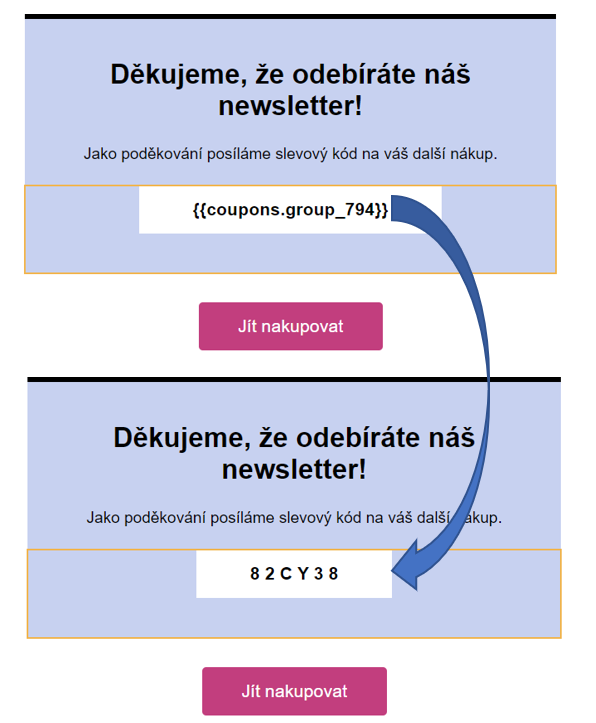
You can organize promo codes into groups that can be assigned different colors and names. Each group has a unique identifier, e.g. {{coupons.group_794}}. Copy it and paste it into the templates you plan to use in campaigns or automations.
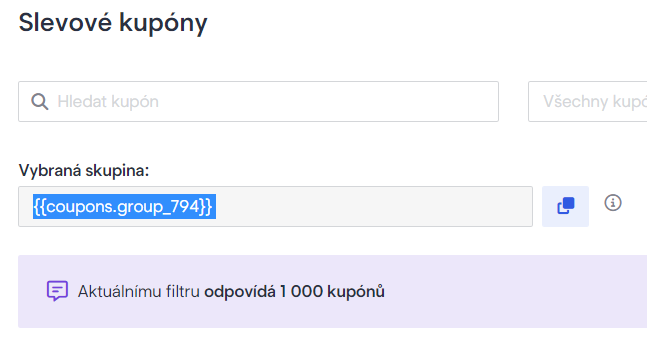
In the template, paste the copied promo codes group identifier where you want unique promo codes to appear to recipients after the campaign is dispatched or after starting an automation and sending transactional emails.
Personalized salutation in template
When creating a template you’ll send to recipients, always consider how its opening—the greeting—will come across to your recipients.
Automatic inflection of first names
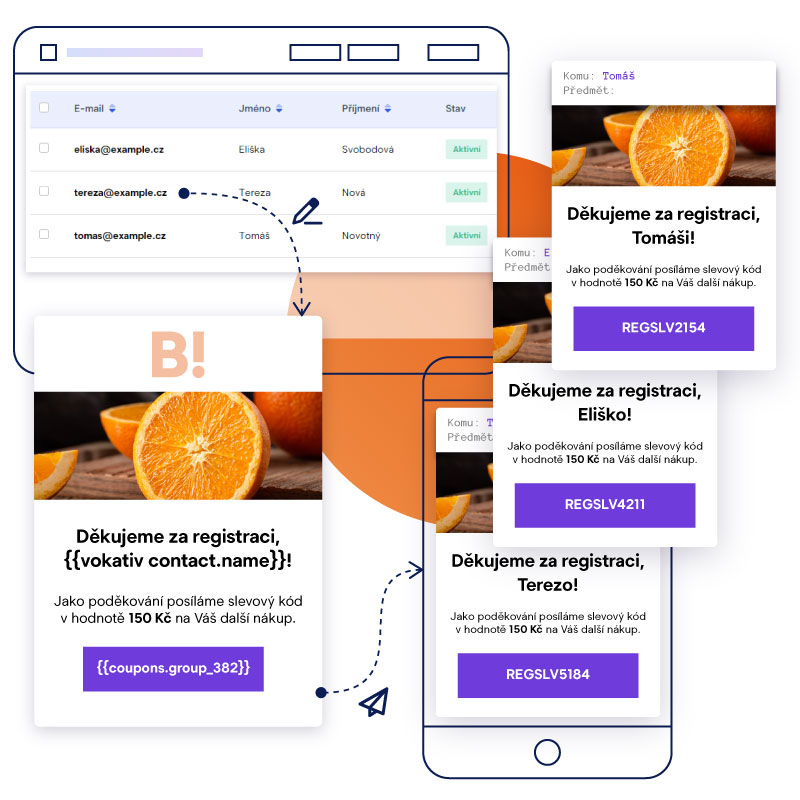
Boldem can automatically inflect first names into the 5th case. To generate salutations, use the vokativ variable. Use this variable by inserting the following string into the template:
{{ vokativ contact.name }}
This string will be replaced after the message is dispatched with the recipient’s first name in the correct vocative form. For example, if the recipient’s first name is Jana, the template will show Jano. To address the recipient informally as Ahoj Jano, use the following string in the template:
Hi {{ vokativ contact.name }},
If you’d like to thank someone for registering, use the following string:
Thank you for registering, {{ vokativ contact.name }}!
Automatic gender-aware surname declension
In many cases of personalized salutations, you need to correctly inflect not only the recipient’s first or last name but also adjust the salutation itself based on the recipient’s gender. Since Boldem lets you record a recipient’s gender, using the resulting string is a breeze.
In certain cases, recipients’ gender is automatically assigned based on the provided first or last name (e.g., when creating manually or optionally during bulk import). For nonstandard names, gender won’t be set automatically, so it’s advisable to verify ambiguous names and enter them manually.
If gender is set for recipients, you can use the following string in the template instead of a specific salutation:
Thank you for registering{{ if contact.sex != null }}{{ if contact.sex == 1 }}, Mr. {{ end }}{{ if contact.sex == 0 }}, Ms. {{ end }}{{ vokativ contact.surname }}!{{ else }}!{{ end }}This string is actually scripting code that checks whether a given recipient has their gender set correctly and uses the appropriate salutation:
- If gender is set to Male and the recipient’s last name is Novák, the salutation used is: Thank you for registering, Mr. Novák!
- If gender is set to Female and the recipient’s last name is Svobodová, the salutation used is: Thank you for registering, Ms. Svobodová!
- If gender is not set, a gender-neutral salutation without a last name will be used: Thank you for registering!
You can, of course, customize the salutation text (shown in bold in the example) to suit your needs. We recommend always thoroughly testing the salutation on a small sample of test recipients with all variants (i.e., both genders and a recipient with no gender specified).

You can similarly distinguish the salutations “Dear Sir”, “Dear Madam”, or “Hello” when the recipient’s gender isn’t specified. In that case, use the following code in the template:
{{ if contact.sex != null }}{{ if contact.sex == 1 }}Dear Mr. {{ end }}{{ if contact.sex == 0 }}Dear Ms. {{ end }}{{ vokativ contact.surname }},{{ else }}Hello,{{ end }}The result is personalized salutations based on the specified gender:

Automation Scenarios
Before creating an automation scenario, decide what you want to achieve with automation — for example, whether you want to reactivate customers based on their past activity in your online store or on their responses to previous campaigns. You can build the automation exactly as you want. Below we’ve selected examples of automations and their variants that you can create in Boldem for reactivation purposes. This list is by no means exhaustive and there are no limits to your imagination — you can combine automation blocks to suit your needs:
- Reactivating customers who haven’t shopped at your store in a while.
- Re-engage customers who didn’t respond to your previous campaigns.
Automation scenario – Customer reactivation
This automated reactivation campaign helps you win back at least some recipients by sending two emails in sequence with time delays, and lets you set conditions and exclude from the list those recipients who don’t respond to either message.
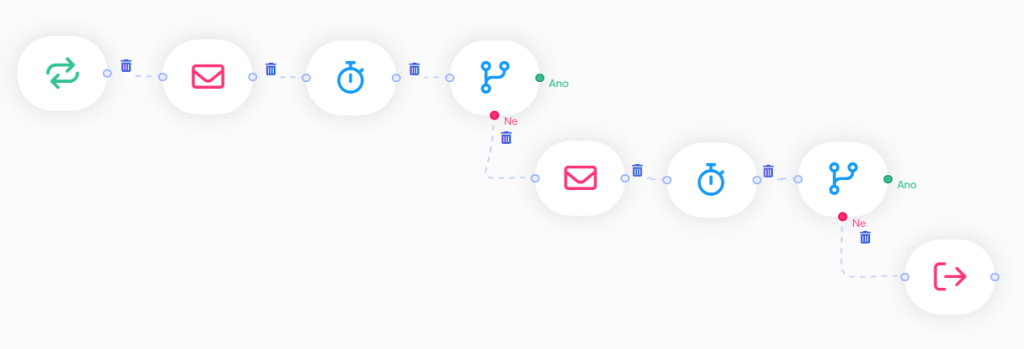
Create automation
- Log in to your Boldem account and go to the Automation section.
- Click Create new automation.
- Enter an automation name and a description. Both are for your reference and can be changed later on the Settings tab in the automation details.
- Confirm your submission by clicking Create automation.
The automation diagram opens, with an overview of blocks you can use in an automation on the left and a canvas on the right where you’ll place them. Adding is done by dragging and dropping individual blocks (drag and drop).
Remember that the automation isn’t saved automatically, so we strongly recommend saving it regularly by clicking the Done/Save button. You can edit the automation for as long as you like — it won’t activate until you click the Start button.
Automation blocks
First, add a trigger block to tell the automation how and how often a recipient will enter it. For reactivation, the most common options are repeated starts of the automation or a one-time start.
A one-time start using the Now block lets you run a single action; use it when reactivating a large group of recipients with a one-off action you don’t plan to repeat in the near future.
Alternatively, you can set repeated starts with the Repeat block to any frequency; it always includes a condition specifying which recipients the automation will run for. Choose this option if you want to regularly evaluate recipients who haven’t taken any action in your online store or campaigns recently.
Below we’ll outline the settings for both triggers. However, choose and add only one trigger to the automation!
Repeated automation starts
If you want to trigger the automation repeatedly, follow these steps:
- On the left, select the Triggers tab, drag the Repeat block onto the automation canvas, and double-click it to open the block settings.
- From the Mailing list drop-down menu, select the list to load recipients from.
- In the following options, choose how often the recurrence should occur, its interval, and the time of day.
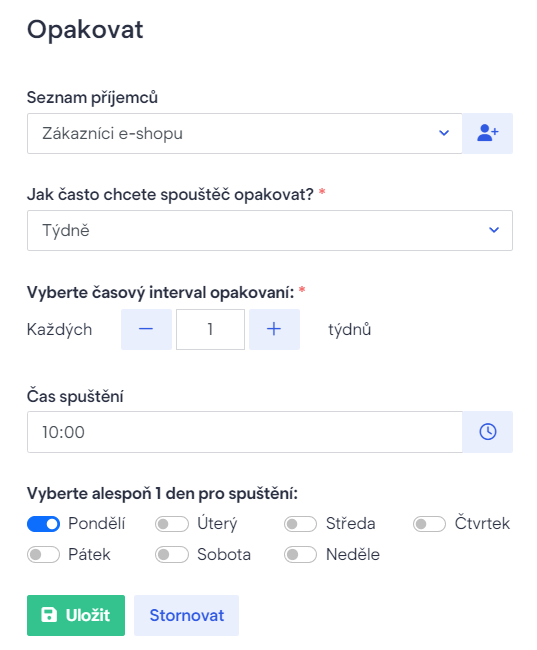
In the Block Configuration, proceed to the chapter Entry Condition Settings.
One-time automation start
If you want to start the automation only once, follow these steps:
- In the left pane, select the Triggers tab, drag the Now block onto the automation canvas, and double-click it to open the block settings.
- From the Mailing list drop-down menu, select the list to load recipients from.
In the Block Configuration, proceed to the chapter Entry Condition Settings.
Input Condition Settings
Now we need to select the entry condition in the block that will trigger the automation. To check whether a recipient hasn’t made a purchase in your store within a certain period, follow these steps:
- Click Select new condition. A dialog opens to select a condition.
- In the Source drop-down menu, select Recipients’ activity on the website.
- In the Select website drop-down menu, choose the e-shop you previously integrated. If you don’t see the e-shop in the list, the integration wasn’t set up correctly. Check its status in Settings/Integration or add the e-shop.
- In the Recipients’ activity on the website drop-down menu, select Didn’t buy in store.
- In the drop-down menu Time range, choose the period over which the condition should be evaluated. For example, select In the last X days and enter the number of days — for example, 180 days if you want to include all recipients who haven’t purchased in the past six months.
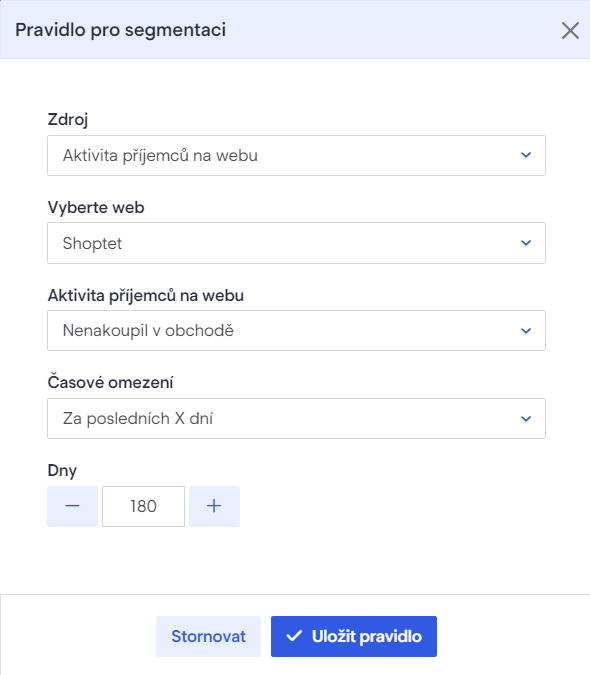
- Click Save rule.
- To check which recipients the automation will run for under the specified conditions, click Open segmentation.
- If you’re satisfied with the recipients check and the condition, click Save and Close. Otherwise, modify the condition as needed.
- Click Save to save the entire block.
If you want to evaluate a recipient based on past campaign activity, do the following:
- Click Select new condition. A dialog opens to select a condition.
- In the Source drop-down menu, select Recipients’ activity in campaigns.
- In the Condition drop-down menu, choose the condition that fits your needs, e.g. Recipient didn’t open the email.
- In the Campaign drop-down menu, select a specific campaign, or leave the field blank to include all campaigns.
- In the Timeframe drop-down menu, select the period over which the condition should be evaluated. For example, choose In the last X days and enter the number of days — for example, 180 days if you want to include all recipients who haven’t performed the selected action in the past six months.
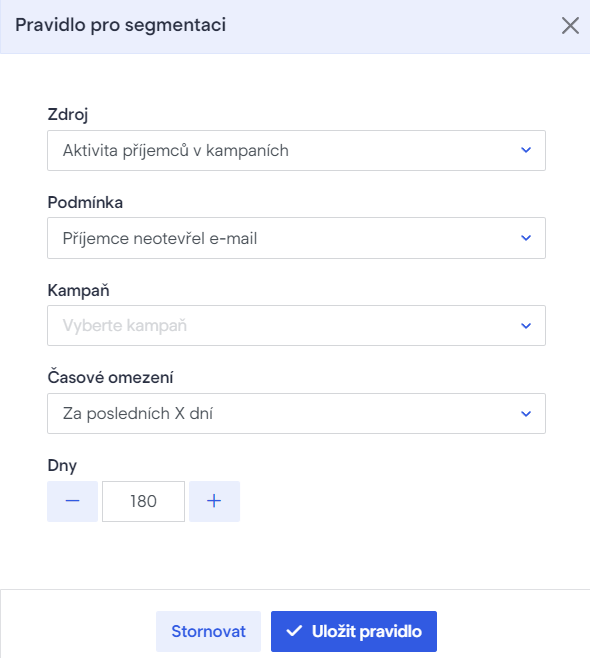
- Click Save rule.
- To check which recipients the automation will run for under the specified conditions, click Open segmentation.
- If you’re satisfied with the recipients check and the condition, click Save and Close. Otherwise, modify the condition as needed.
- Click Save to save the entire block.
Email dispatch
Now we’ll add a block to dispatch an email intended to motivate the recipient to take action. For example, this could be an offer of a discount code.
- In the left pane, select the Actions tab, drag the Send email block onto the automation canvas, and double-click it to open the block settings.
- From the Template drop-down menu, select the transactional template you want to send to the recipient.
- Leave the remaining settings at their defaults and click Save.
Insert delay
After dispatching an email, you need to set a delay — the time we give recipients to respond to our message.
How to insert a delay:
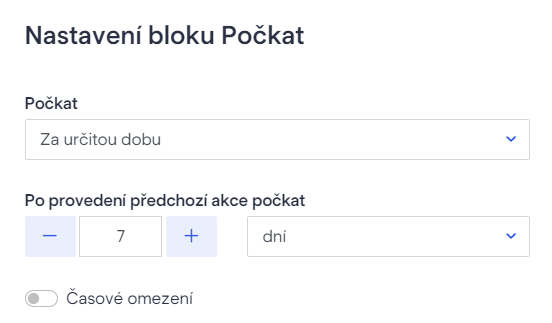
- In the left pane, select the Operators tab, drag the Wait block onto the automation canvas, and double-click it to open the block settings.
- From the drop-down menu select After a certain time and choose a delay, e.g. 7 days.
- Click Save.
Adding the first conditional block
After the delay, we want to check whether the recipient responded to our message. So we add a condition block to the automation. Follow these steps:
- In the left pane, select the Operators tab, drag the Condition block onto the automation canvas, and double-click it to open the block settings.
- Click Select new condition. A dialog opens to select a condition.
- In the Source drop-down menu, select Recipients’ activity in transactional emails.
- In the Condition drop-down menu, select a condition that fits your needs, e.g. Recipient opened the email or Recipient clicked a link in the email.
- In the Template drop-down menu, select the transactional template you entered in the previous step in the Send email block.
- In the drop-down menu Time limit, select the same duration you entered in the previous Wait block. In our example, that’s 7 days.
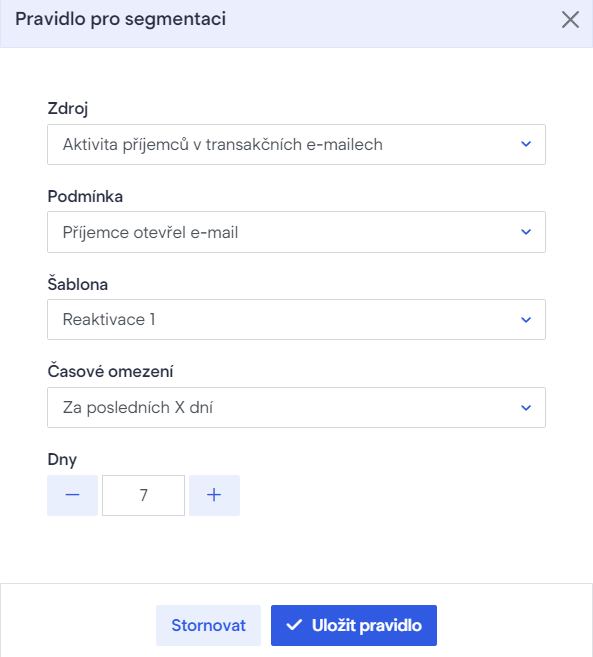
- Click Save rule.
- Click Save to save the entire block.
You should now have 4 blocks in the automation. Connect the blocks by clicking and dragging:
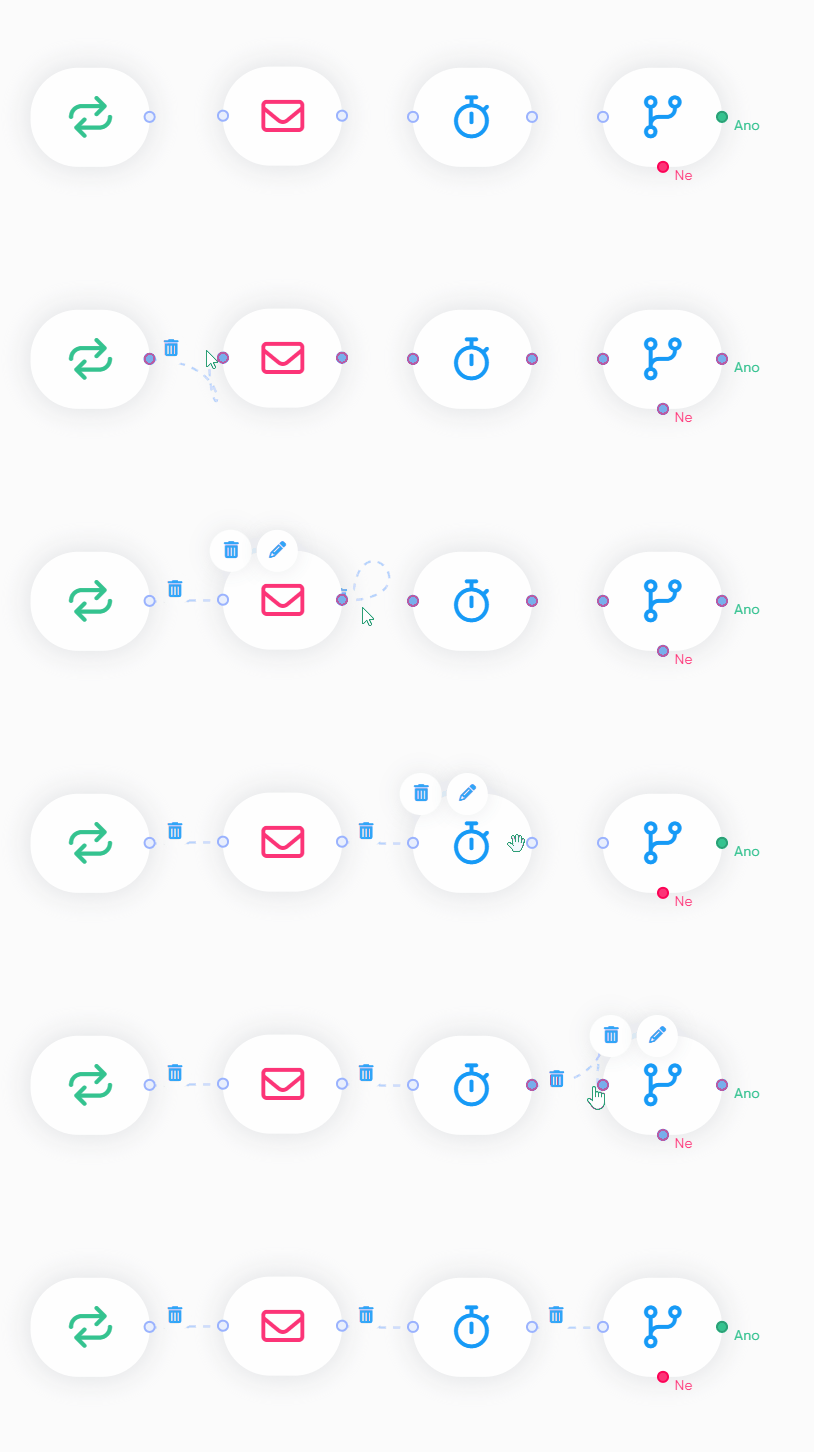
You can insert additional blocks after a condition block and take its feedback into account. Follow the instructions for the relevant branch:
Branch of the first block with condition – Yes
If the recipient met the condition you specified — in our example, they opened the reactivation email we sent within the last 7 days — you can leave this branch empty if you’re satisfied with the result. In that case, the automation ends for that recipient.
If you want to track a recipient’s activity by a custom flag, you can create a custom field and assign it a value using the Edit recipient block. Instructions for creating and using a custom field are in the article Custom fields.
You can also add a recipient to another mailing list, for example if you want to sort active recipients. Use the Edit mailing list action for this purpose.
Branch of the first conditional block – No
If the recipient doesn’t meet the condition you set — in our example, doesn’t open the reactivation email we sent within the last 7 days — you can add additional blocks to that branch to give the recipient another chance to stay on your mailing list. If the recipient still doesn’t respond to the second attempt, you can add a block with a second condition to remove them from your mailing list completely.
How to add a block to email dispatch:
- On the left, select the Actions tab, drag the Send email block onto the automation canvas, and double-click it to open the block settings.
- From the Template drop-down menu, select the transactional template you want to send to the recipients.
- Leave the other settings at their defaults and click Save.
The email should again be motivating — since the recipient didn’t respond to the previous message, you can try offering something different, such as a volume discount, temporarily moving the recipient to a higher discount tier, club membership, a progressive discount, and so on, depending on what your business can offer.
We should again allow recipients enough time to respond to our message. It’s advisable to choose a longer delay than in the previous case.
- In the left pane, select the Operators tab, drag the Wait block onto the automation canvas, and double-click it to open the block settings.
- From the drop-down menu, select After a certain time and choose a delay, e.g., 14 days.
- Click Save.
After the time expires, we’ll re-evaluate how the recipient responded to our message; so we’ll add a second conditional block:
- In the left pane, select the Operators tab, drag the Condition block onto the automation canvas, and double-click it to open the block settings.
- Click Select new condition. A dialog opens to select a condition.
- In the Source drop-down menu, select Recipients’ activity in transactional emails.
- In the Condition drop-down menu, select a condition that fits your needs, e.g. Recipient opened the email or Recipient clicked a link in the email.
- In the Template drop-down menu, select the transactional template you entered in the previous step in the Send email block.
- In the drop-down menu Time limit, select the same duration you entered in the previous Wait block. In our example, that’s 14 days.
- Click Save rule.
- Click Save to save the entire block.
We need to evaluate the block again in some way. You can find details for each branch below.
Second block branch with condition – Yes
If the recipient met the parameters of our second conditional block — that is, reacted to the second email by clicking or opening it within the specified timeframe, we can consider the automation complete for them and leave that branch empty if you’re satisfied with the result.
Similar to the block with the first condition, here you can also track a recipient’s activity using a custom flag and even create a custom field that you assign a value to using the Edit recipient block. For example, you can distinguish activity level based on which message the recipient responded to. If you send different types of incentives in individual messages, you can name activity types after those incentives and assign them to recipients. After some time you can return to this data and evaluate whether one incentive or another works better on inactive recipients.
Instructions for creating and using a custom field can be found in the article Custom fields.
You can also add a recipient to another mailing list, for example if you want to sort active recipients. Use the Edit mailing list action for this purpose.
Branch of the second block with condition – No.
If the recipient doesn’t meet the condition you set — in our example, doesn’t open the second reactivation email we sent within the last 14 days — you can add a block to this branch that completely unsubscribes the recipient.
- On the left, select the Actions tab, drag the Unsubscribe block onto the automation canvas, and double-click it to open the block settings.
- From the Unsubscribe method drop-down menu, select how you want to unsubscribe the recipient:
- Unsubscribe from all mailing lists – this will permanently remove the recipient from all mailing lists in your account.
- Unsubscribe from a mailing list – if you want to remove the recipient from only a specific mailing list, choose this option and select the list from the drop-down menu.
- Optionally, you can unsubscribe the recipient for a limited time. In that case, click Time limit.
- Click Save.
Test and start automation
You should now have at least 8 blocks in the automation. Connect the blocks by clicking and dragging:
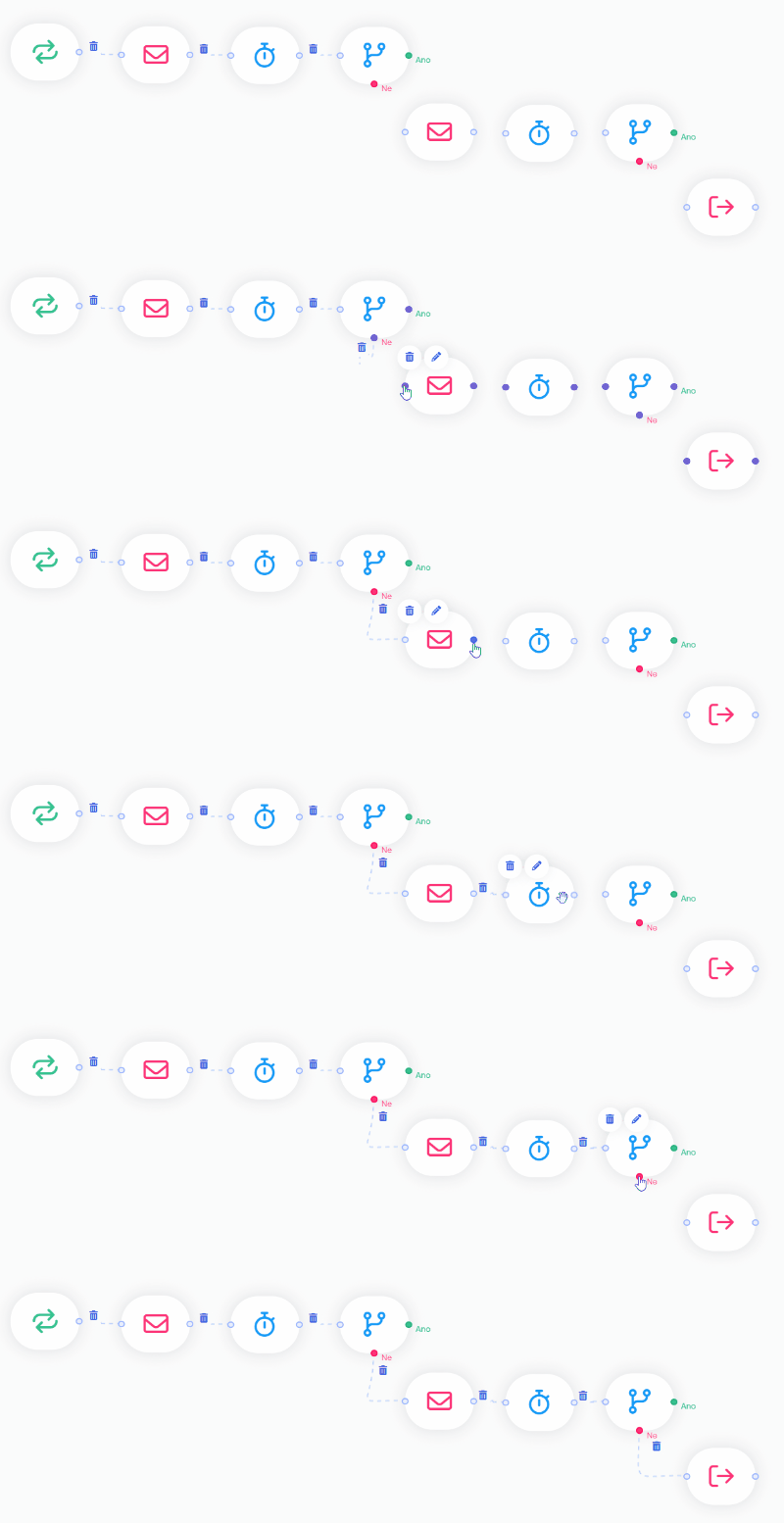
You can further customize the automation to suit your needs — change the number and types of emails and the delays over time to see which work best for your customers.
Once you’re satisfied with the settings and number of blocks, save the automation by clicking Done/Save.
Thoroughly test the automation before you start! You can find testing procedures in the article Automation testing. We recommend not underestimating testing and starting the automation only after it has been thoroughly tested.
Once you’ve completed testing with a positive result, start the automation by clicking Start.
General information on how to work with automations can be found in the chapter How to work with automations in Boldem.

