
 Adam Koutný
Boldem MCP Server is an extension that connects your Boldem account to AI assistants such as Claude, Cursor, or Windsurf. Thanks to the MCP (Model Context Protocol), you can manage recipients, campaigns, templates, and other parts of Boldem using natural language. Just describe what you need, and the AI will take care of it for you.
MCP can be set up in two ways: using a prompt that you hand to your AI assistant, or manually. Both approaches are described below.
MCP is currently designed to match our API, so you can perform all the operations that are available there.
When working through an AI assistant (Claude, ChatGPT, Cursor…), your queries and contextual data from Boldem are sent to the provider of that AI tool (Anthropic, OpenAI, etc.). Make sure you don’t share sensitive personal data, and check the data-processing terms of your AI client.
1. Prompt for your AI assistant
Install and set up the Boldem MCP server for me — the npm package `boldem-api-mcp`, https://www.npmjs.com/package/boldem-api-mcp — so I can use you to work with my Boldem account: recipients, campaigns, templates, orders, transactional emails, and SMS.

Proceed as follows:

1. **Find out what environment you're running in.** Do you have a tool for running terminal commands (Bash / PowerShell) available to you?
- **Yes** (typically Claude Code): continue with step 2 and perform the installation yourself.
- **No** (typically Claude Desktop, Cursor, Windsurf, and others): skip to step 5 and prepare the configuration for me to insert manually.

2. **Check Node.js.** Run `node --version`. Version 18 or higher is required. If Node.js is missing or older, stop and tell me to install it first from https://nodejs.org.

3. **Ask me for credentials.** You need my OAuth `Client ID` and `Client Secret` from Boldem. If I haven't given them to you along with this task, ask me for them and wait for my answer — don't guess them or use placeholder values.

4. **Register the MCP server** with the command:
   ```
   claude mcp add boldem -e BOLDEM_CLIENT_ID=<moje-client-id> -e BOLDEM_CLIENT_SECRET=<muj-client-secret> -- npx -y boldem-api-mcp
   ```
   Then continue with step 6.

5. **Prepare the configuration for manual insertion.** Generate this JSON for me with the values filled in, and tell me which file to put it in based on my client and operating system (for Claude Desktop it's `claude_desktop_config.json`, available via Settings → Developer → Edit Config). If the file already contains an `mcpServers` section, show me how to add the `boldem` section alongside the existing ones, not how to overwrite the whole file:
```json
{
   "mcpServers": {
      "boldem": {
      "command": "npx",
      "args": ["-y", "boldem-api-mcp"],
      "env": {
         "BOLDEM_CLIENT_ID": "<my-client-id>",
         "BOLDEM_CLIENT_SECRET": "<my-client-secret>"
         }
      }
   }
}
```
   Finally, remind me that after saving the file I need to fully quit and restart the client. That completes this part — we'll do steps 6 and 7 after the restart.

6. **Restart the session if needed.** The server may not load in an already-running session. If you don't see it, tell me to restart the session, and wait.

7. **Verify that it works.** Call the `boldem_get_account_info` tool — it's read-only and won't change anything. Then summarize for me:
   - whether the server is connected and authentication succeeded,
   - which Boldem account you're connected to,
   - briefly, what you can now help me with (contacts, mailing lists, campaigns, templates, products, orders, transactional emails and SMS, automations).

**Security rules:**
- Never print my Client Secret back in a response or in any file that could end up in git. Never save configuration containing credentials into a project directory.
- During installation and verification, don't call any tool that creates, changes, deletes, or sends anything. Use read-only tools only.
- If any step fails, stop, show me the exact error, and ask how to proceed. Don't try to work around the error another way.
Requirements
- Node.js 18 or newer — download link here
- An AI client with MCP support. For example Claude Code, Claude Desktop, Cursor, or Windsurf
Step 1: Create an API key
- Log in to your Boldem account.
- Go to Settings → API
- Create a new API key
- Copy the Client ID and Client Secret values. You’ll need them during installation.
Step 2: Install the MCP server
Claude Code
Open a terminal and enter:
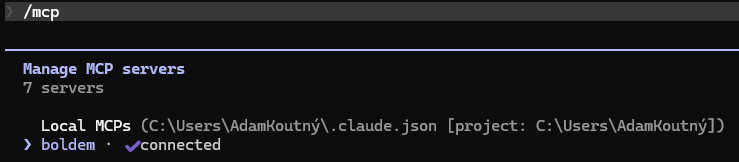
npm install -g boldem-api-mcpclaude mcp add boldem -e BOLDEM_CLIENT_ID=your-client-id -e BOLDEM_CLIENT_SECRET=your-client-secret -- boldem-api-mcpThen restart your Claude Code session and verify the connection with the /mcp command. You should see this:
Claude Desktop
Open the claude_desktop_config.json file and add:
{
  "mcpServers": {
    "boldem": {
      "command": "npx",
      "args": ["-y", "boldem-api-mcp"],
      "env": {
        "BOLDEM_CLIENT_ID": "your-client-id",
        "BOLDEM_CLIENT_SECRET": "your-client-secret"
      }
    }
  }
}
Cursor / Windsurf / other MCP clients
Use the same JSON configuration as for Claude Desktop, in your client’s MCP settings.
FAQ
Do I need to know the API tool names? No. Just describe what you want in plain language. The AI assistant will automatically choose the right tool and parameters.
Is it safe? The MCP server runs locally on your computer. API keys are never sent anywhere – they stay in your local configuration. Communication with the Boldem API is encrypted over HTTPS.
Could the AI accidentally send a campaign? AI assistants like Claude ask for confirmation before destructive actions (sending a campaign, deleting a contact). Even so, we recommend using the test-email feature first.
How much does it cost? Boldem MCP Server is free and open source (MIT license). To use it you need an active Boldem account and an AI client with MCP support.
How do I update the server?
If installed globally: npm update -g boldem-api-mcp. If using npx, updates download automatically.
Something isn’t working — what should I do?
- Verify you have Node.js 18 or newer (node –version).
- Check that your Client ID and Client Secret are correct.
- In Claude Code, enter /mcp and verify the server shows as connected.
- If the problem persists, contact us at support@boldem.cz.

