
Before dispatching a campaign, you may see a notification that the template is missing an unsubscribe link. Boldem performs this check to ensure your messages comply with the GDPR and to reduce the risk of them being marked as spam.
There are several reasons why you should include an unsubscribe link in marketing and bulk emails:
- To comply with GDPR requirements.
- To accommodate recipients and keep your contact database up to date.
- To reduce the risk that a recipient who can’t unsubscribe will mark your messages as spam.
- To collect valuable information about why recipients unsubscribe, which you can gather if you customize the unsubscribe page.
Adding an unsubscribe link to a smart template
To add an unsubscribe link to a smart template, you have two options:
First method
- Open the smart template you want to edit.
- Click the grid button ᎒᎒᎒ to view content blocks.
- From the block menu, drag the Text block into the template on the right.
- Edit the text, e.g., If you’d like to unsubscribe from these emails, click here.
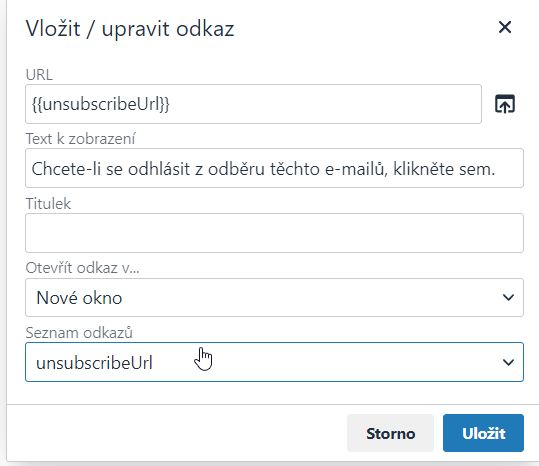
- Select the text you want to turn into a link and click the 🔗 Insert / edit link icon, or press the Ctrl+K key combination.
- Displays the Insert Link dialog.
- From the List of links menu, select the unsubscribeURL item and click Save.
Second method
To add an unsubscribe link with the sample text, follow these steps:
- Open the smart template you want to edit.
- Click the grid button ᎒᎒᎒ to view content blocks.
- From the block menu, drag the Text block into the template on the right.
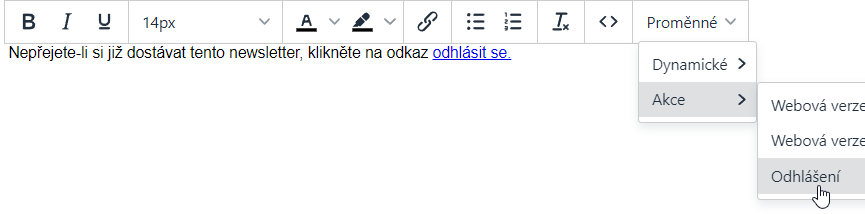
- On the toolbar, click Variables ➪ Actions ➪ Logout.
- A text with an unsubscribe link will be inserted. You can edit the text freely.
Keep in mind that a template is inserted into a campaign as a copy! Any changes you make to the template inside the campaign apply only to the copy stored in that campaign. The source template in the Templates section will remain unchanged.
If you’ve already created a campaign draft and inserted a template that you want to edit in the Templates section, after editing you must first remove it from the campaign and then insert it again.
Adding an unsubscribe link to the HTML template
To add an unsubscribe link to your HTML template, you can do this in two ways:
First method
- Open the HTML template you want to edit.
- Click the WYSIWYG editor toggle switch to enable the editor on the right.
- Enter the text where you want the unsubscribe link to appear, e.g. To unsubscribe from these emails, click here.
- Select the text you want to turn into a link, and click the 🔗 Insert / edit link icon, or press Ctrl+K.
- Displays the Insert Link dialog.
- From the List of links menu, select unsubscribeURL and click Save.
Second method
To add an unsubscribe link with sample text, follow these steps:
- Open the HTML template you want to edit.
- Go to the place where you want to insert the unsubscribe link.
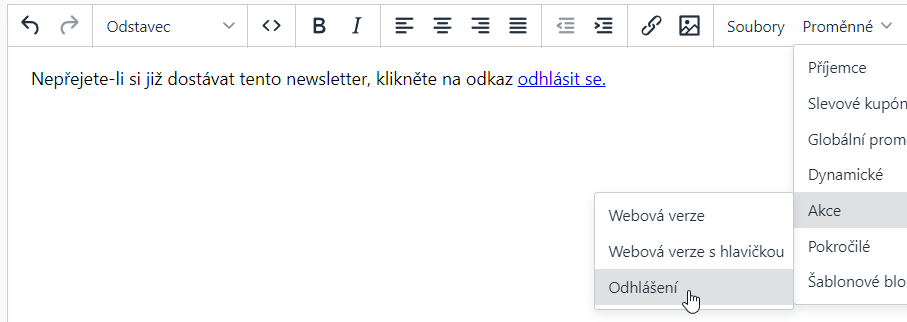
- On the toolbar, click Variables ➪ Actions ➪ Logout.
- A text with an unsubscribe link will be inserted. You can edit the text as you like.
 Michal Krejčí

