
A transactional template is a type of smart template that can be used in automations, when calling certain API functions, or when dispatching transactional emails.
Any smart template can be set as a transactional template. A fully verified sending domain is required for a transactional template to work properly. You can manage sending domains in Settings/Domains.
To create a new transactional template, follow these steps. You can update an existing smart template the same way; in that case, open the template and continue with step 4:
- Log in to the Boldem app and go to the Templates section.
- Click Create new template and select Create smart template.
- Choose whether to edit a predefined template from the gallery, use a sample template, or start from scratch with an empty template.
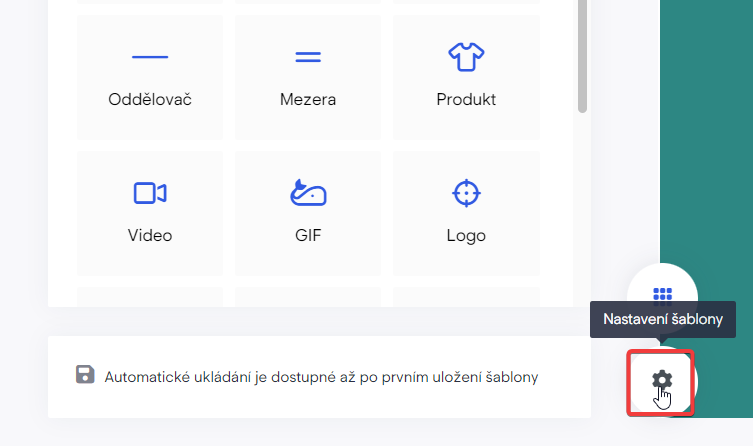
- Click the gear icon. The Information tab will appear.
- On the Information tab, enter the template name, subject, and preheader (subject preview).
We recommend naming the template after the context or scenario you’ll use it in automations, so you can easily find it in the template list.
- Enable transactional features with the toggle switch Template for transactional emails (Automation and API). Additional fields for the transactional template will appear.
- Fill in Sender Email, Sender Name, and select Domain Router from the dropdown list.
Enter a working sender email address. This email must be on a domain you have verified in Boldem. Add or verify a domain in Settings/Domains.
- In the top-right corner, click Done and select Save and Exit.
You can start using this transactional template in automations, when calling certain API functions, or when dispatching transactional emails.
 Michal Krejčí

